-
Install your Windows Steam games on Apple Silicon Macs Using Whisky (A free GPTK Front-End), a tutorial
This tutorial won't be ultra-comprehensive, but rather a quick start guide designed to get you up and running Windows Games fast as possible. The video version of this includes a bit more info and demos of games running.
You've probably heard about Apple's Game Porting Toolkit also known as GPTK, a utility design to porting Direct X based games to Mac, and it happens to have the ability to run Windows games on the Mac. This process originally required installing a bunch of tools via the command-line and it wasn't stream lined. Now it is, thanks to apps like Whisky. This app is 100% free and it's caveat is it was designed only to work with DirectX 11 and 12.
If you're looking for a geekier solution, I now have a guide on "Transform Your Apple Silicon Mac into a Steam Deck with Asahi Linux, A Tutorial
Requirements
- Apple Silicon Mac running at the very minimum macOS 13 Ventura but macOS 14 Sonoma is strongly recommended. (check the Whisky github page for the latest info). Intel Mac users can use bootcamp.
- Whisky (Link to the Releases)
- Steam for Windows (download the Windows version by clicking the Windows logo to download the .exe)
Installation
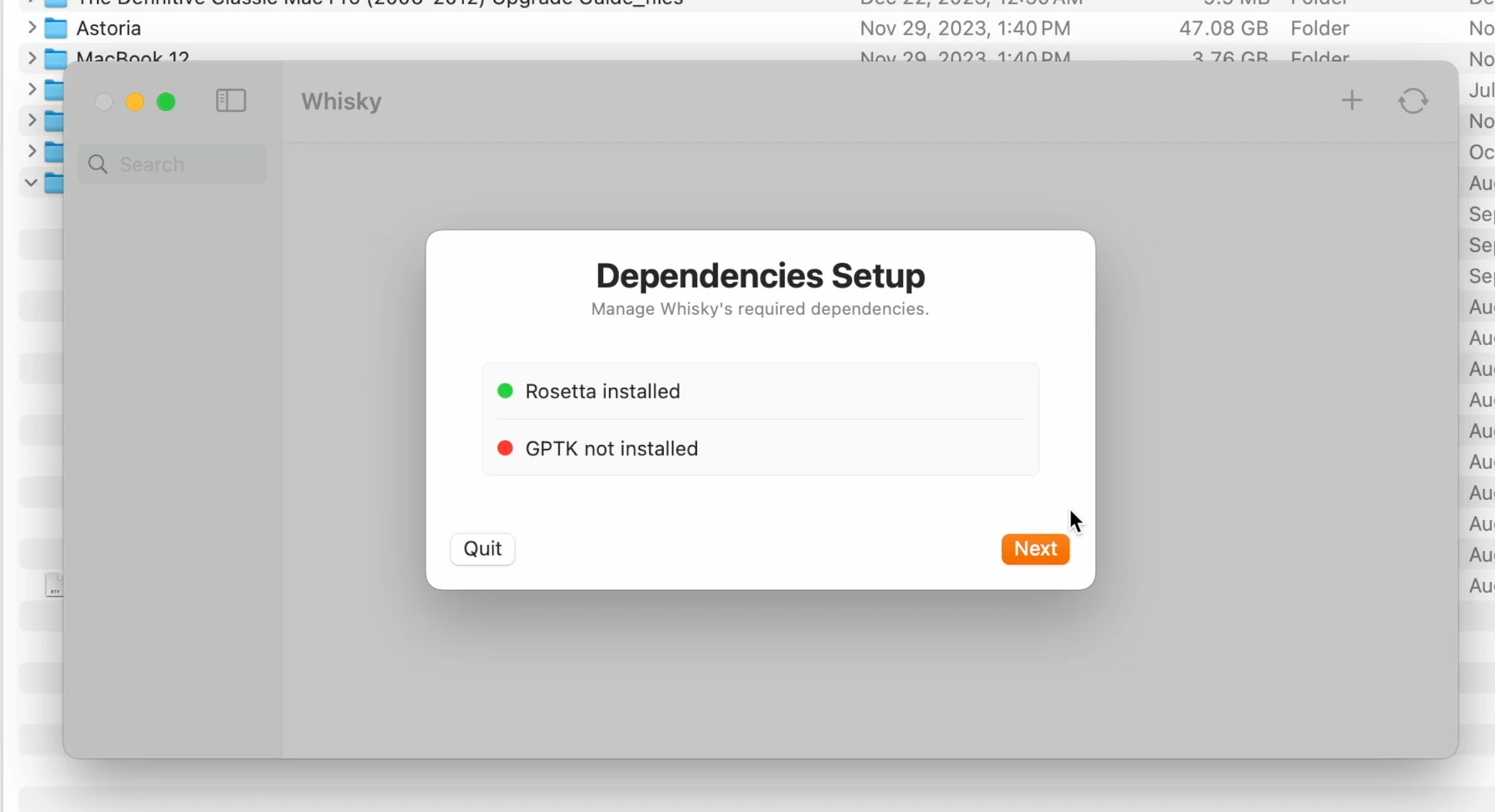
After downloading Whisky, Double click it and then it will prompt you to install Rosetta 2, a translation technology by Apple that allows Macs with Apple Silicon processors to run software designed for x86 and GPKT (Game Porting Toolkit). The total will be be over 400 MBs.
Click create New Bottle. Just for context, GPTK uses WINE, and WINE bottles are self-contained environments that allow Windows applications to run on non-Windows operating systems. You can choose where the WINE Bottle will be installed on your Mac (this is where the windows games will be installed, if you want to use an external drive, you can).
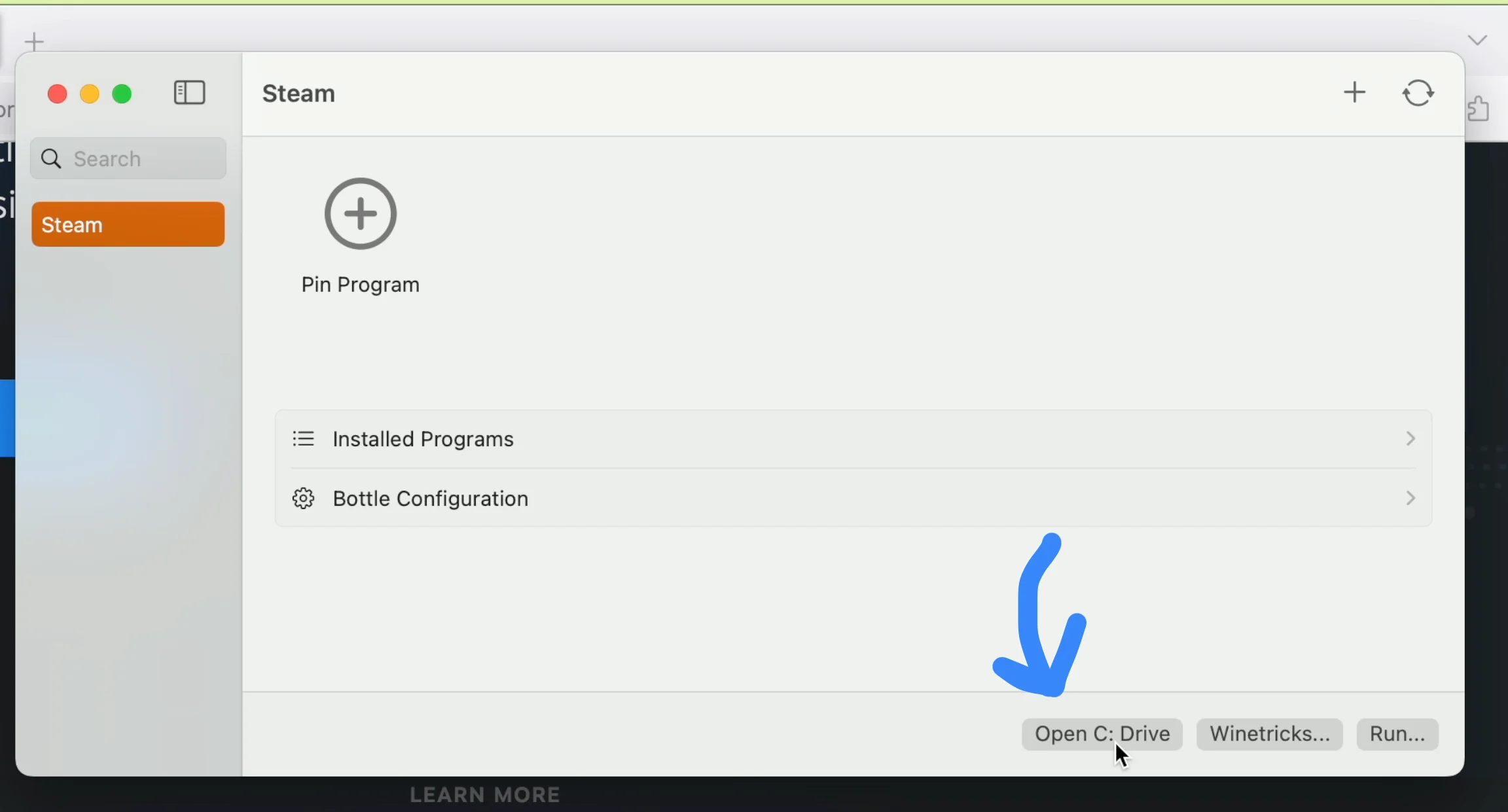
From the Whisky interace, click open C drive. Then Drag the SteamSetup.exe into the drive_c folder.
Now go back to Whisky and click Run and select the SteamSetup. You'll step through the steam setup as if it were a normal PC.
From here you can install games as you normally would. Just be aware sometimes important dialog boxes can be hidden behind the steam application.
Game Compatibility
It's important to understand many older titles are unlikely to work for multiple reasons such as:
- The game is not Direct X 11 or Direct 12
- AVX instructions which Rosetta
- Anti-cheat Software
- Unsual copy protection
- Certain types of online features
There isn't a comprehensive list of compatible titles, the best place to check is AppleGamingWiki and look under GPTK compatibility. Also, Whisky has a small Game Support Wiki for running particular titles.
There's always Linux & Proton...
I recently made a guide for installing Asahi Linux and running Proton on Apple Silicon Macs, you can read the article: Transform Your Apple Silicon Mac into a Steam Deck with Asahi Linux, A Tutorial or watch the video below
-
Scenes from the Columbia Gorge Blizzard - 01/13/24
When the winter weather gets terrible, instead of seeing it as execuse to curl up indoors, I find myself grabbing my gear and heading into the storm. At this point in my life, I've logged enough hours driving in pretty abysmal conditions of just about every imaginable stripe. As a PNWer, I've rarely experienced blizzards in my home state so I saw a 16F day with 65+ MPH wind gusts as an opportunity.
Driving conditions started off not terrible, I84 was mostly clear of snow due to the winds. On my way on old Columbia Highway, I cleared a downed branch, and on the way up Multnomah Falls, I moved several logs off the trail.
The visibility dropped during my hike (as seen in the video at the end), and rather than keep venturing further, I decided to drive back as visibility was so poor. It was comparable to the extreme fog often in the Redwoods on 101, where 25 mph seems like a big ask. I ended up driving with my emergency blinkers back into town and taking the advise of TLC even though I wanted to check out Horsetail Falls.
On my drive back, I started seeing more evidences of the storm. Large swathes of Portland were without power and trees were downed. Each day during the snowpocalypse/icepocalypse I made my way out into Portland. I saw multiple trees on houses, downed power lines and houses without power. My neighborhood was relatively well off, despite lots of large branches falling and a few trees.
-
Apple designed a modular computer that they do not want you to service
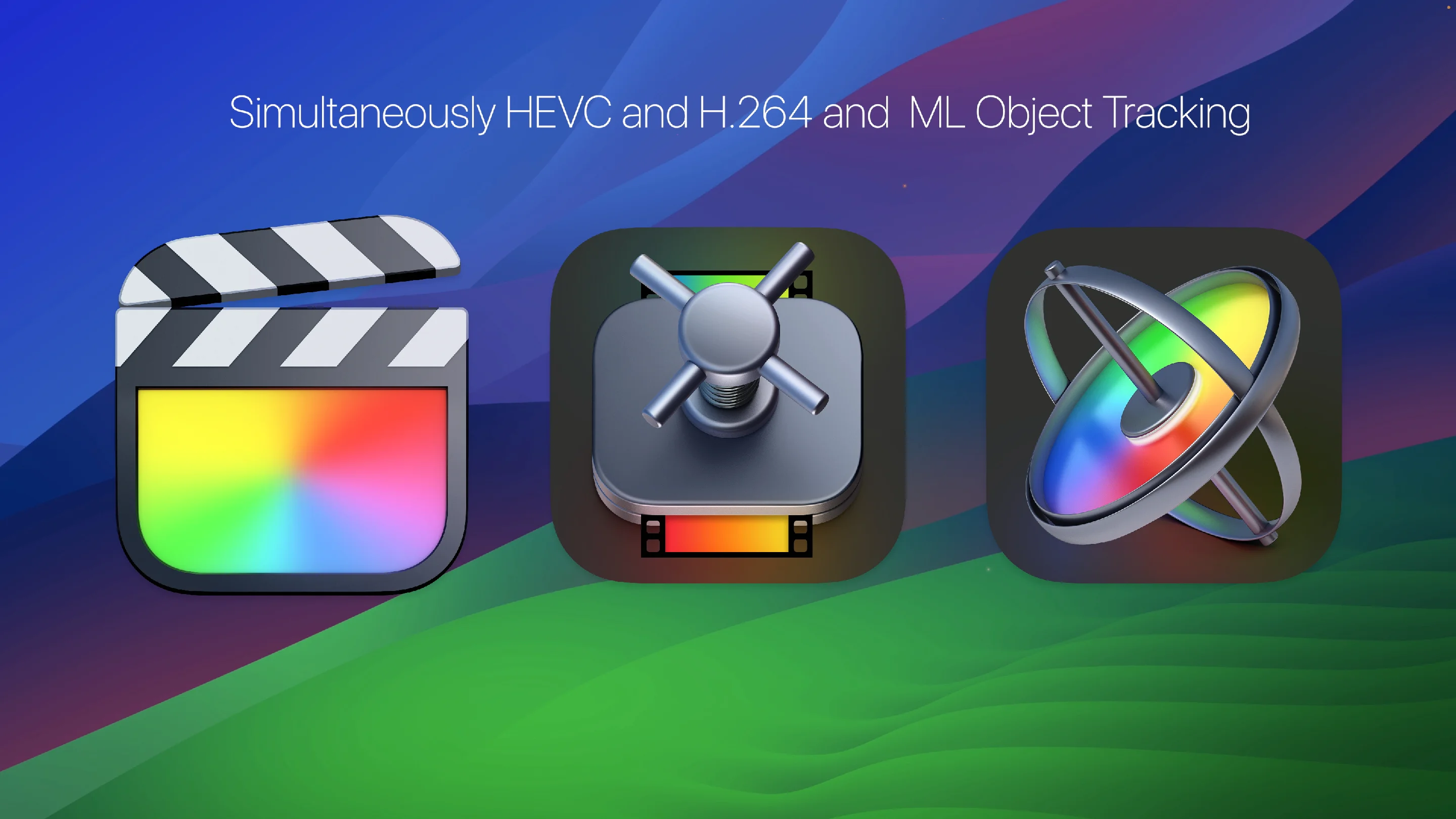
Recently, Apple announced some pretty killer features for Final Cut Pro X, Motion, and Compressor, but they are Apple silicon only. The updates include machine learning based object tracking and faster exports for HEVC and H.264 by simultaneously processing video segments across available media engines but these aren't magical features that would be should be limited to Apple Silicon considering the GPU compute power that the Mac Pro 2019 offers and the ability to have multiple GPUs.
Video version of this post is attached above.
Apple wants to vector away from Intel Macs, which isn't news, but they're leaving the most dedicated Mac users or professionals in the lurch.
The Mac Pro 2019 represents inconvenient truth about Apple Silicon. To this day, Apple has not produced a GPU competing with AMD's highest-tier offerings. The highest-end GPU supported macOS still from the previous generation, the 6900 XT.
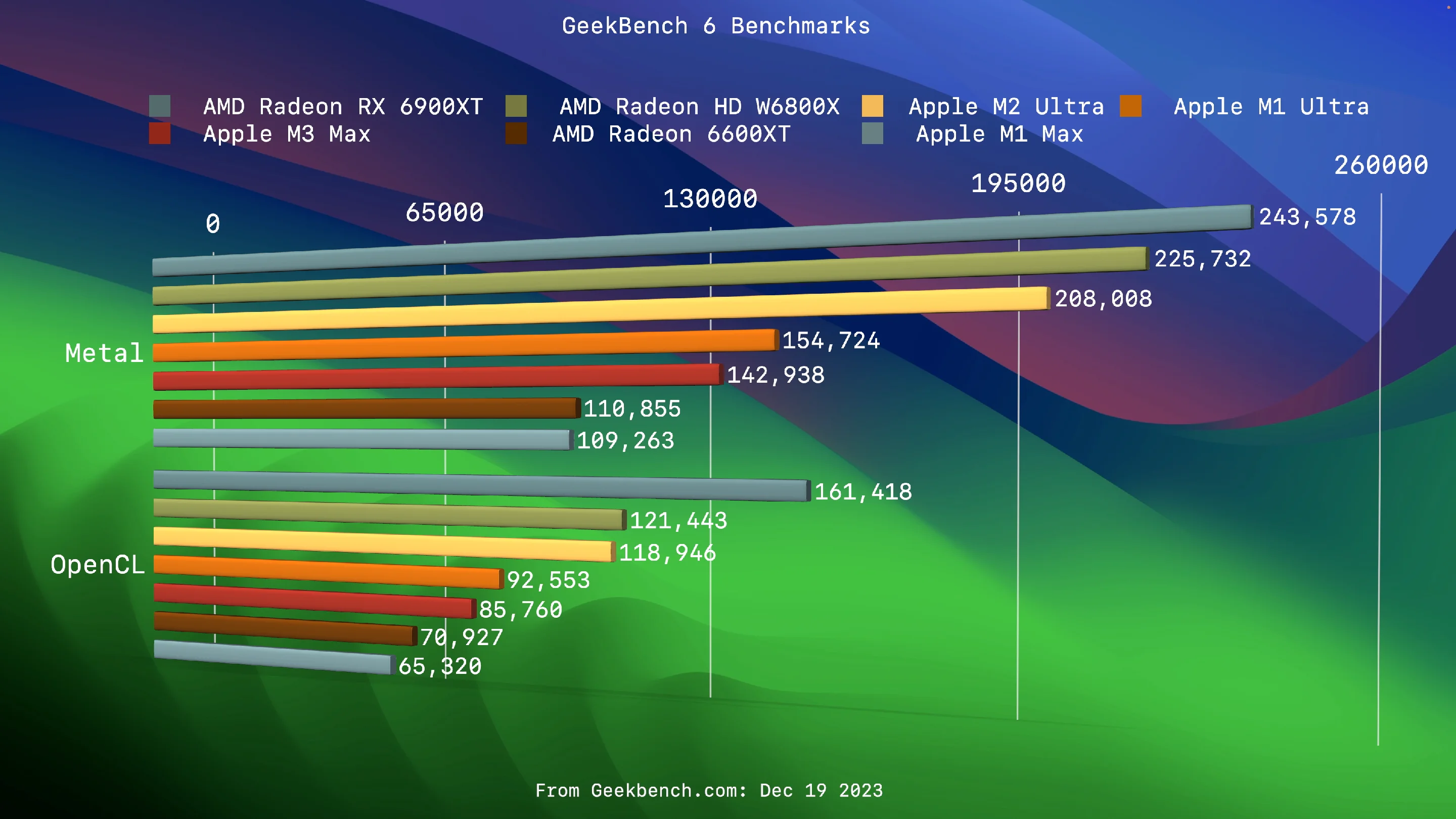 Apple’s GPUs lag in comparison to the power-sipping dedicated GPU market…
While Geekbench 6's metal benchmarks are not the only way to gauge a GPU performance, The 6900 XT in sheer compute is oodles above the current line up of integrated GPUs and almost certainly will outperform the M3 Ultra's GPU. Apple Silicon integrated GPUs have incredible TDPs (Thermal design power), which are fantastic for laptops but much less of an issue in the desktop space, where TDPs can be offset by power-consumption and arrays of fans.
Apple thus far has opted not to support the AMD 7000 series GPUs, aka Navi 31 (released December 13th, 2022). While AMD is lagging behind Nvidia, they managed to make the transition to a 5 nm Chiplet technology.
My wild speculation is Apple does not want to support these as it'd be an embarrassment for the Apple Silicon GPUs and Apple would like to move away from all things X86. For reference, the monstrous 7900 XTX is roughly 45-50% faster than the 6900 XT. Also, it supports hardware AV1 encoding.
This in itself isn't worth a blog post as Apple's lack of extended support is disappointing but not surprising or novel considering Apple's long history of abandoning computer support fast, be it the poor souls who bought PowerMac G5s 2x Dual-Core CPUs or worse, the earliest adopters of the Intel Macs, with the Core Duos, each getting 3-4 years of support before Apple abandoned them.
My absurdist Apple Store experience
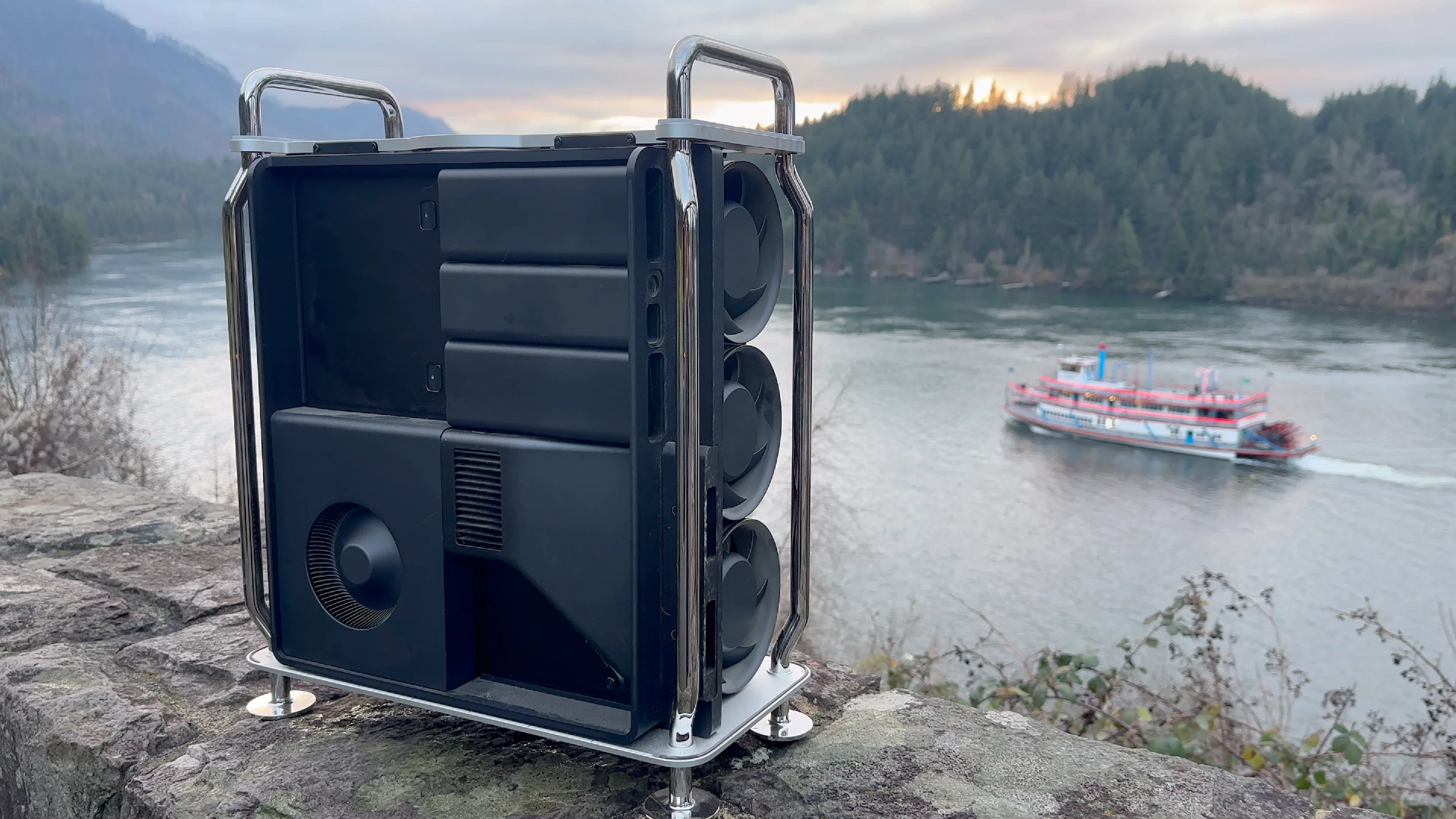 The Mac Pro 2019 is completely modular, but it doesn’t matter.
The most curious thing about the Mac Pro 2019 is how much time and effort Apple spent making a modular computer, one that you cannot repair yourself. Replacing the PSU (Power Supply Unit) is a 5 minute affair, no more difficult than replacing an MPX GPU. This is wonderful... assuming you can actually buy one.
The only way to service a Mac Pro 2019 is via an Apple Store. I discovered this after my Mac Pro 2019 reported a fan issue in diagnostic mode. After trekking to a local Apple Store lugging my 50+ pound computer, it took Apple roughly a week to reach the same conclusion as me: the diagnostic mode is reporting a fan error and that Apple would need to service my Mac Pro. I learned several things:
- Apple will not sell you parts directly.
- Apple requires a technician to install the part even if you're not covered by Apple Care.
- Any parts removed become property of Apple. Under no circumstance will Apple give you your non-functioning part.
- Apple will not replace missing parts.
This is absolutely bonkers, considering the time and effort Apple took to make the Mac Pro 2019 serviceable by a novice, earning itself a 9 out of 10 from iFixit, as it requires only a Phillips and Torx screw driver. I was extra miffed that I couldn't keep my faulty fan array. It's functioning properly but may have a bad sensor. I wanted to see if I could fix it myself.
Apple may have backed a right-to-repair bill, but Apple itself is rotten to its core.
-
Encrypting USB Drives / External Media / External SSDs, a pictorial guide + troubleshooting
I'm sure there are many tutorials on the web, but I was a bit surprised how a simple UI quirk makes this a lot more confusing than it needs to be. Encrypting external media like USB drives (thumb drives/USB sticks), Hard drives, and SSDs can be a bit cumbersome in macOS. This tutorial will walk through the steps needed to create encrypted APFS external media.
Warning! This process will reformat the drive, thus losing all its contents. Be sure to have your data backed up on the drive you intend to encrypt.
Step 1: Launch Disk Utility

By default, disk utility doesn't present the options we need to properly reformat a drive to use encryption.
Step 2: Select Show All Devices

Show all devices will display the volume and not just it's partitions.
Step 3: highlight the drive you wish to format and click erase


Step 4: Set the scheme to "GUID partition map"

On the lower menu make sure you have Apple Partition app selected.
Step 5: Select an encryption option from the Format option

Select APFS (Encrypted) or APFS (Case-sensitive, Encrypted). I personally recommend case sensitive, but macOS can use pathing to files and ignore the casing used in the words to the file. In a non-case sensitive context
/path/to/fileis the same as/PATH/To/File. With case-sensitive pathing, these would lead to different directories. Apple recommends using case sensitive.Step 6: Select password

Be sure to remember this password, as you will not have the option to recover the password. You can save your password in your Apple Keychain so every time the drive is plugged in, you will not be prompted for a password. You can also look up the password in the keychain.
Trouble shooting!
You may have problems formatting some drives. the following:

Mounting disk
Creating a new empty APFS Container
Unmounting Volumes
Couldn't unmount disk. : (-69888)Fixing this requires manually unmounting the volume before formatting by clicking the eject button next the format drive (not the parent).

Umount, and repeat from step 3.
-
Gruber back on his BS
If Apple says they support California’s SB 244, it probably just means they actually support it. - John Gruber, Daringfireball
I've fallen out of reading Daringfireball daily (hence the delayed hot take), or even weekly when for years it was a must reads and I think these sort of defensive takes are probably why. When I penned my first line on my personal blog, I think I was trying to immitate Gruber's wit and quippiness. I even have a daringfireball shirt.
That said, my desire to hear a defense of Apple corrolates directly to Apple's more and more egregious clownery when it comes to the right to repair. These days I'm more Louis Rossman than John Gruber, for better or worse.
Also, I need to post more....
-
Getting XEMU to work on macOS (Intel / Apple Silicon Xbox emulation)
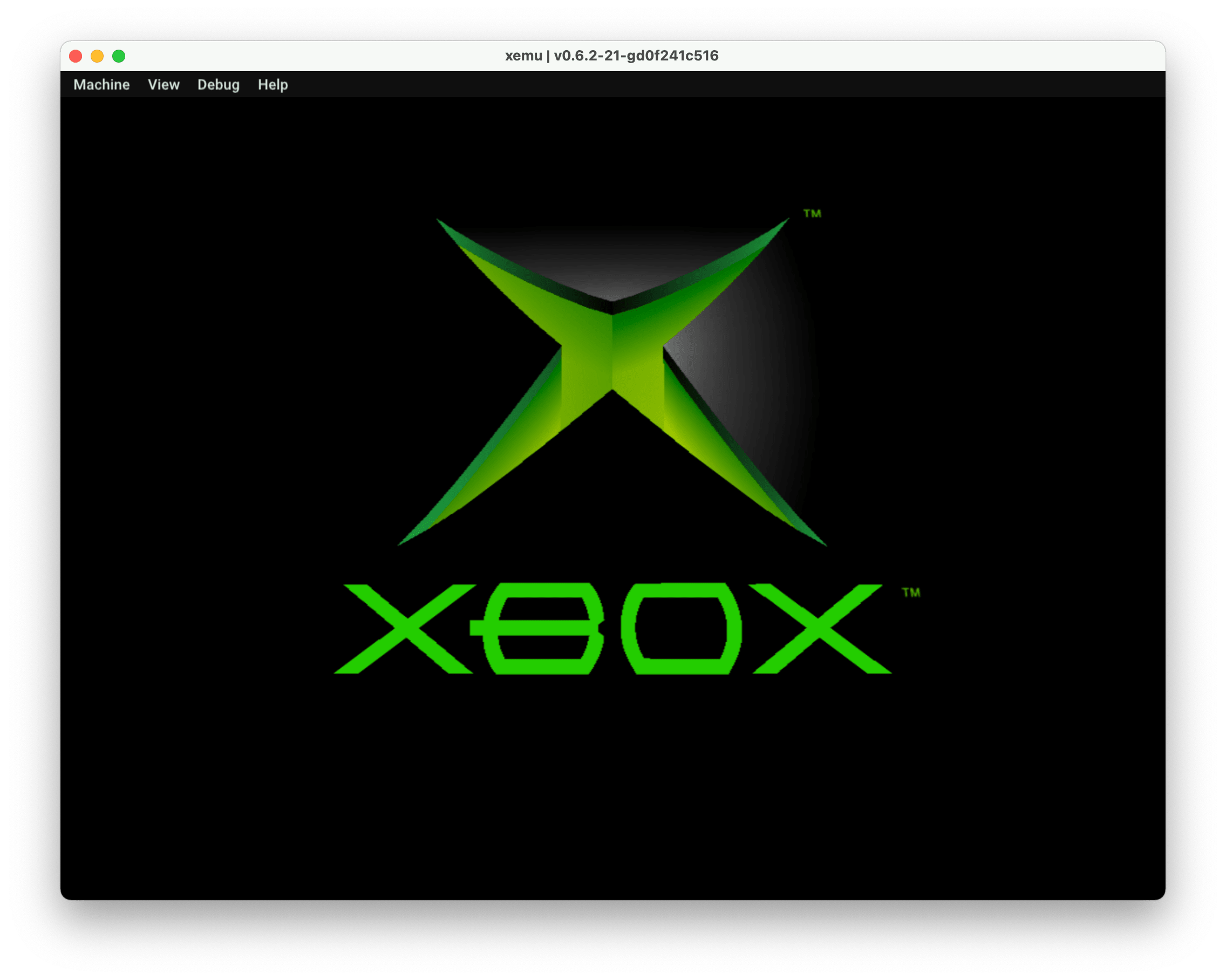
Getting XEMU on macOS running isn't super difficult but running games is as direct ripped Xbox ISOs will not work with XEMU. I've updated this guide with an Xemu video tutorial that dives deeper into Xbox emulation. I recommend using it in tandem with this guide. Terminal savvy users probably can follow the written guide but I'd recommend checking out the video if you encounter issues as there's a few quirks with the emulator.
- Homebrew - (it is possible to do it without Homebrew but for sanity's sake I will be using it
- Git. There are multiple ways to install git but I'd recommend using
xcode-select --install - The XEMU emulator
- System Support files
- extract-xiso to make converted ISOs
First, you need to download XEMU. It's updated frequently. Grab it from the official website here. It's a universal binary, so it runs natively on both Apple Silicon and Intel Macs.
After you need a few files, these are, legally speaking, the parts of the emulator that are copyrighted. I stumbled across them on Reddit. I own an Xbox, so I'll just say I extracted them myself. Please do not ask me about where to get these files or games.. I'll ignore your request.
The files are:
- Flash (Bios) - Complex_4627v1.03.bin
- MCPX Boot Rom File - mcpx_1.0.bin
- Hard disk Image File - xbox_hdd.qcow2
And the EEPROM, which will be created automatically. Leave the RAM at 64 MB.
You'll have to go to settings and manually assign each of these files; I found that placing them in the same directory as the emulator is recommended for whatever reason. It got confused when I didn't. Also, be sure to quit, as you'll need to reboot the emulator for the changes to take.
Next, it's running games. Games are generally in the ISO format. It's up to you to determine how your ethics work on this and please do not ask me for ISOs. There are places where people back up the games they own, like Archive.org.
This is where Xbox emulation gets tricky. You cannot just play ISOs. You first need to repack them into an ISO format that XEMU will understand.
For that, we have extract-iso, a command-line utility that is used to convert ISOs into playable ISOs.
First, we need to download, cmake so we can compile extract-xiso to run on our Mac. You'll need Git and Homebrew installed for this to work.
Open up a terminal window and do the following:
Step 1: Dependencies
Run the following, update brew and then install
cmake, a utility to create the necessary files to build/compile the application.brew updatebrew install cmakeStep 2: Clone The Repo
From the terminal, you'll want to navigate or create a directory where you'd like XEMU to live, as by default, the terminal will open up into the
~/(your user directory.)git clone https://github.com/XboxDev/extract-xiso.gitStep 3: Go into the directory
Now we enter the directory where extract-xiso was cloned to.
cd extract-xisoStep 4: Create a build directory
Next we need to create a build folder for camke as per the instructions for extract-xiso and run the cmake/make commands from the this directory.
mkdir buildcd buildStep 5 Building the app
Next, we're going to run
cmakeand after it completes and creates the makefiles, runmake.cmake ..makeNow we're ready to prep Xbox ISOs
Using extract-xiso
From the build folder, we can run the CLI utility.
The utility has the ability to unpack Xbox ISOs and repack them into usable ISOs for XEMU.
There are two ways to about converting the ISOs. The easier method, which I had mixed success with, is to use:
./extract-xiso -r path/to/.isoThis will convert the ISO into the correct format. It'll rename the original iso to
.iso.oldand place in the build folder the converted ISO.The other is a two-step process.
Step 1: extract the game contents
./extract-xiso -x /path/to/isoStep 2: repack the game contents
./extract-xiso -c /path/to/extracted-filesA few tips:
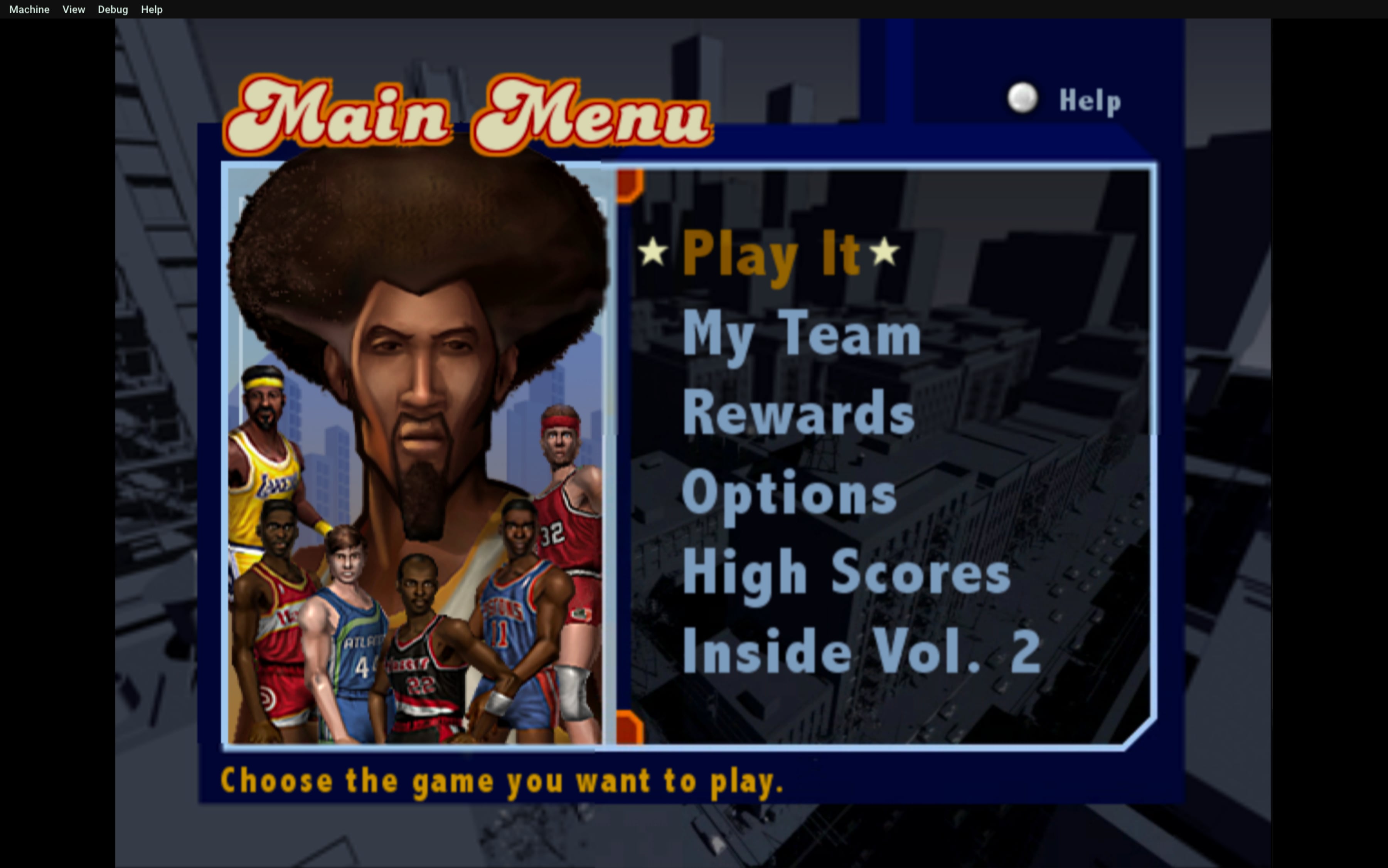
XEMU is a fickle beast; quitting it and reopening it after changing settings is best. If you try an ISO that does not work, you must quit and reopen the app with a working ISO. Don't expect perfect emulation, as Xemu is still actively being developed. I found NBA Street Vol. 2 playable, but there are annoying crackles in the audio.
Other Emulation Articles I've written
-
Apple's secret OS and the Secure Enclave Processor
Did you know Apple Silicon Macs run more than one operating system at once in order to function.... and this secretive secondary operating system is why you can't upgrade your SSDs on Apple Silicon Macs? But that's not the whole story.
Apple silicon macs and also T2-equipped Macs, iPhones, iPads, and even the Apple watch use a dedicated hardware component known as the secure enclave, and it's more than just marketing.
The secure enclave is a separate processor explicitly designed to handle sensitive operations related to security and privacy.
One of the main operations for the secure enclave is to generate and store encryption keys and biometric data like Touch ID, and it needs to protect this data from various attacks like physical tampering and side-channel attacks. In order to do this, it needs it has its own memory and storage and needs to be isolated from the rest of the system.
To do this all, it also needs its own stripped-down operating system, known as Secure Enclave OS or SEPOS, and can only be accessed by the computer via a few protected APIs.
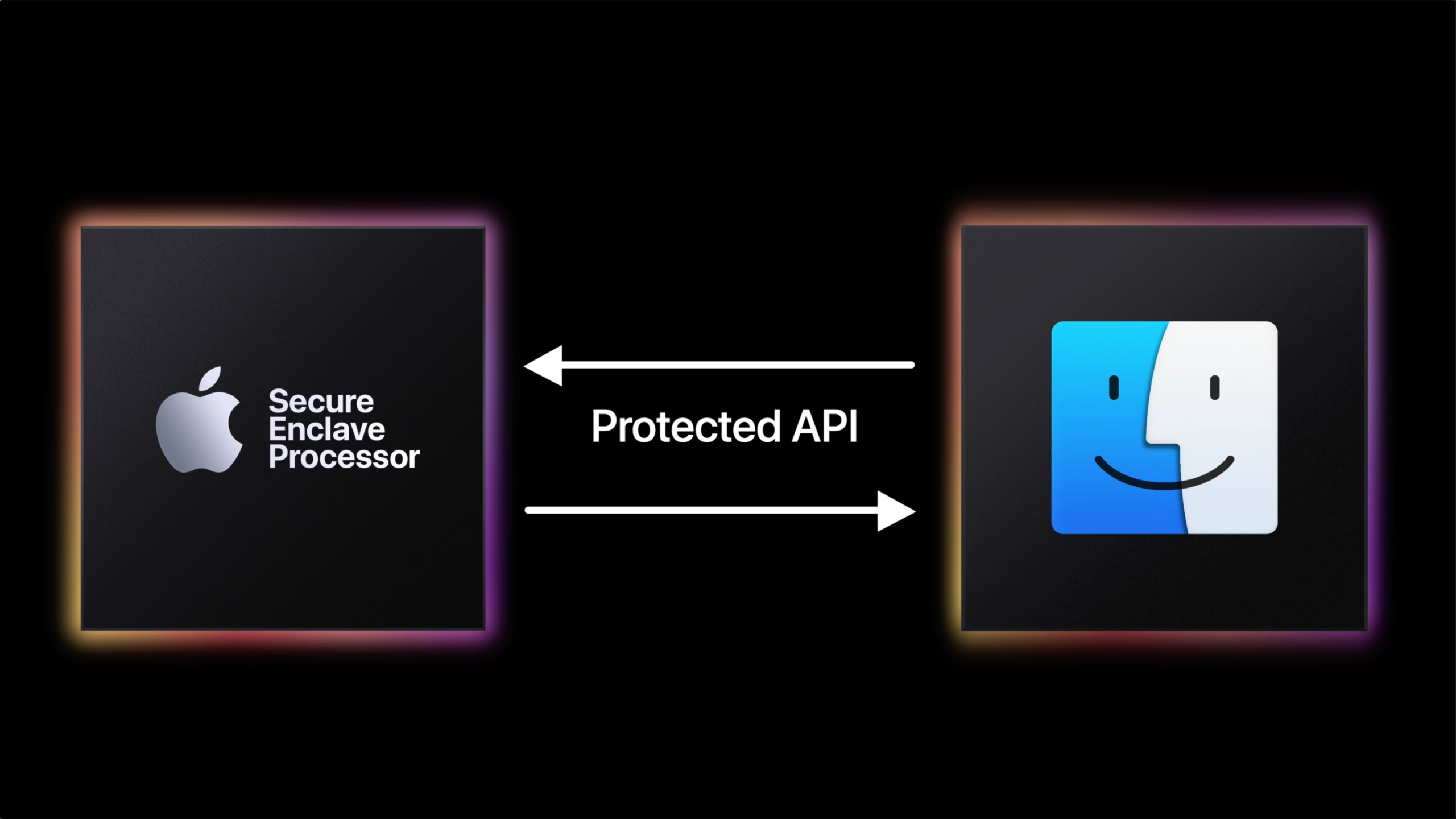
When a user's password is set up on an Apple Silicon Mac, the password is passed through a one-way hashing algorithm that produces a key used to encrypt the Secure enclave's key. This means that even if someone has access to the password, they cannot access the encryption keys stored in the Secure enclave without the Secure enclave's cooperation.
This is important. This means any encrypted data must pass through the Secure enclave. The operating system and user never get to see this encryption key and can only use APIs to interact with the Secure Enclave.
It also uses a unique identifier, a Root Cryptographic Key, called the Secure Enclave ID, which is used to identify the device. This is fused to the secure enclave during manufacturing without even Apple's ability to access it. This ensures that the encryption keys stored in the Secure enclave can only be used on the device they were generated on.
So if you stole the physical NAND memory modules out of a MacBook and even had the encryption keys, It would not work because you would still need to match the encryption key to the Secure Enclave ID.
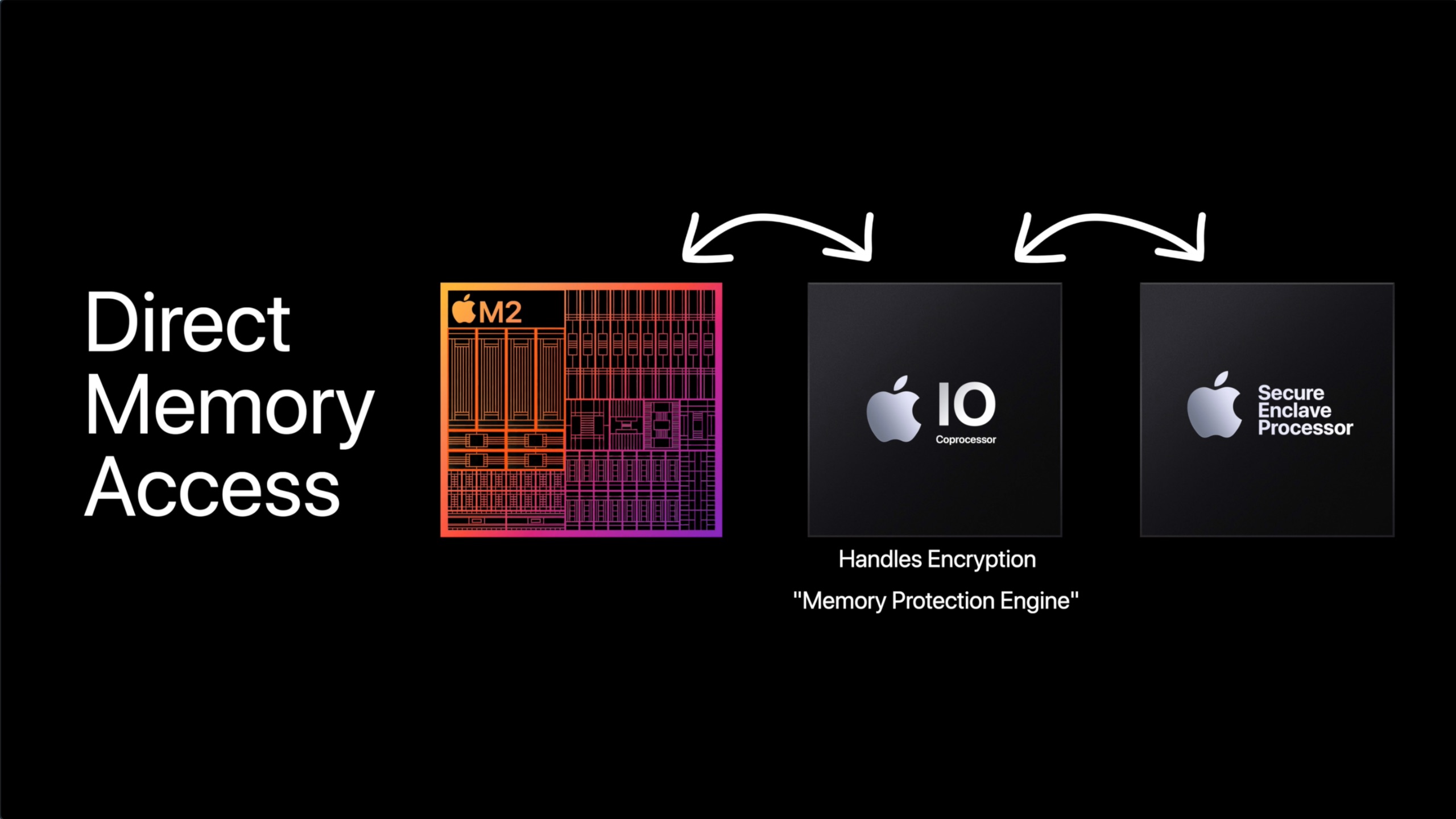
It also helps thwart DMA attacks, where an attacker uses a device with direct memory access, like a Thunderbolt device. A Thunderbolt device uses a PCIe interconnect, and one of the main selling points of PCIe is direct memory access. macOS encrypts its memory and uses an I/O processor that manages communication between the main processor and Secure the Enclave. The memory needs to be encrypted and decrypted, and any device trying to attack memory will only get encrypted data. Apple refers to this as the Memory Protection Engine.
Handling these tasks is SEPOS. The SEPOS is designed to be resistant to attacks, including physical tampering, and it has been certified under the Common Criteria security standard. It's based on the L4 Microkernel, which is popular for a secure embedded system as it has a minimal set of services and uses a highly privileged mode that is isolated from user-level code. This starts to get abstract, but the point is that there's a well-defined interface, and the kernel is small and focused. Thus, it is easy to analyze and verify by security analysts and has a design that allows for specialized isolated subsystems. Apple took this operating system and modified it for use in the secure enclave.
This isn't everything that the secure enclave does, as it does quite a bit, like true random number generation, Secure Neural Engine, AES Engine, Secure Enclave Boot ROM, Secure Enclave Boot Monitor, and so on. I really suggest reading the Apple document on this. It's what I used to make this video.
The end result is if you buy a used Apple Silicon Mac, and the user doesn't provide the firmware password, then there's no way for you to reset it.
SSDs and the Secure Enclave

SSDs generally consist of a controller, NAND memory modules, DRAM cache (found on quality SSDs), and an interface.
Apple's Secure Enclave is tightly integrated for Apple, and the SSD controller itself resides within Apple Silicon. As we previously discussed, the secure enclave generates a hardware encryption key and is used to encrypt the contents of the NAND memory (storage). The key is stored in the Secure enclave, and the keys are derived from a combination of the secure enclave ID and characteristics of the NAND. When a new SSD is installed, it would have to generate a new key. If an attacker might be able to determine the original key by comparing the new key to the old key and identifying the differences between the two. If the new key had different characteristics than the old key, this could potentially reveal information about the old key and compromise security. Apple also uses its own implementation of the PCIe and not NVMe protocol, so Apple would have to also harden its security for NVMe.
Now I'm confident Apple could arrive at a solution as Apple's Secure enclave has gone through multiple iterations now, with roughly 16 versions now at the time of making this video. Apple could arrive at giving users the ability to change NVMe SSDs requiring reduced security settings or perhaps an unlock that warns a user about the potential encryption key exposure.
Secure Enclave is extremely powerful when it comes to security. In my OpenCore Explained video, I broke down Apple's many security innovations on the operating system side.
I consider myself an informed user and I would gladly accept any risk for removable storage over being locked into zero upgrades as the NAND memory, which makes an SSD, has a finite shelf life. A memory cell on an SSD can only be written and overwritten so many times before it fails. SSD controllers identify bad blocks eventually they hit a critical mass and will fail. Apple preventing anyone from swapping these means that every Apple Silicon Mac has a time bomb built into it, and there's nothing end users can do to fix it.
Despite the greenwash marketing, Apple has no qualms about generating eWaste. Also, Apple shipping bottom-tier Macs in RAM-starved configurations and with laughably small SSDs means that the OS will have to use the SSD for memory swap operations when the RAM is completely filled more frequently and with fewer bytes to rotate on very small SSDs like 256 GB. This also shortens the NAND shelf life.
Apple chooses not to tackle this on any front as it knows that it generates money no matter how this plays out: A user has to pay upfront the Apple tax on overpriced upgrades and also has to deal with planned obsolescence baked into the hardware and software. Let's not forget Apple will stop supporting its Mac at some point. It gets to hide behind security as a smokescreen.
So when you see right to repair legislation pop up, please support it. Apple makes wonderful products marred by their disdain for the users who use them.
-
OpenCore and OpenCore Legacy Patcher Explained
You're most likely aware OpenCore and OpenCore Legacy Patcher. It's a boot loader, whatever that means... .which we will get to in-depth, and it lets you run macOS on old Macs that are no longer supported by Apple. This blog post and vide is a high-level overview so you can understand how OpenCore works and what Open Core Legacy Patcher is.
Let's step back in time to a few years ago. When users wanted to run macOS on unsupported Macs, they'd turn to modify the operating system, the most common being preconfigured scripts like DOSDude1. These weren't perfect, as you generally had to reapply them each time you updated the OS, no matter how small. Even a security update could render your mac unbootable until repatched. It was simple until it wasn't. Here's what happened:
Over time macOS has evolved to be more closed at the system level. This started when Apple started following the industry trend of signed code in 2009 with the introduction of Snow Leopard. Signed code allows the OS to verify the identity of the software developer and ensures that the application has not been tampered with or modified since it was signed. This evolved in many ways, but the most important is the modern usage of integrity protection which exists as System Integrity Protection, introduced in 10.11 El Capitan, SIP or System Integrity Protection which restricts the actions of the root user / privileged processes that can be performed on critical system files and folders. Translation: a rogue app will have a much tougher time hacking your OS as it doesn't have permission to do so.
Apple began requiring signed code for applications distributed outside the Mac App Store with the release of macOS 10.8 Mountain Lion in 2012, not with Snow Leopard in 2009. Snow Leopard (10.6) introduced support for signed code but did not mandate it.
System Integrity Protection (SIP) was indeed introduced in macOS 10.11 El Capitan, and it restricts the actions of the root user and privileged processes to protect critical system files and folders. This makes it harder for rogue apps or malware to compromise the system.
Also, integrity protection exists in the file system itself in APFS with metadata integrity protection, which uses cryptographic verification of metadata, which helps prevent tampering and protects against malware attempts to modify the system. The system also now exists as a separate partition within the APFS container that is read-only during normal operation. All of this makes macOS a lot less likely to be infected with OS-level malware.
Apple File System (APFS) includes metadata integrity protection, which uses cryptographic verification to help prevent tampering and protect against malware attempts to modify the system. APFS was introduced in macOS 10.13 High Sierra.
The system partition's read-only status during normal operation was introduced in macOS 10.15 Catalina, further enhancing security.
Apple, in even more recent releases, has deprecated Kexts, small modules of code that are designed to extend the functionality of the macOS kernel and other system components, such as device drivers or filesystems. Kexts or kernel extensions are very powerful. Thus, they are a potential vector for malware.
Of course, the focus on security has complicated modifying macOS by 3rd parties; however, some very smart programmers and hackers devised impressive solutions.
On the Hackintosh side, users who wanted to run macOS on PC hardware had created a thriving software scene. Clover became the preferred and essential method of installing macOS on unsupported hardware. Clover was a boot loader and could inject Kexts into macOS.
A bootloader is a piece of software that is responsible for loading the operating system kernel and initializing the hardware devices during the boot process. We'll dig into this more in a minute.
Clover was essential but had shortcomings regarding security, compatibility, configuration and generally required additional patching. Hackintosh users and owners of unsupported Macs faced a similar problem when macOS was on unsupported hardware. A system update could break the entire setup until certain hacks and patches were reapplied.
OpenCore was developed as a way to fix these issues for both unsupported Macs and Hackintoshes, relying on its ability to inject changes as part of the boot process rather than modify the OS itself. The advantage is that the OS would be left intact without requiring altering of most security settings or patching/hacking the OS.
OpenCore and Kexts
OpenCore uses a feature called Kext Injection. When OpenCore boots the macOS kernel, it scans the system for all available kexts and injects them into the kernel as needed. This allows users to add support for hardware devices that are not natively supported by macOS or to modify system behavior in various ways.
OpenCore also uses the concept of "Kext Patches" to modify the behavior of existing kexts or to patch the macOS kernel itself. This isn't unique to Clover, but OpenCore's methods are improved. Kext Patches are small code snippets that are applied to kexts or the kernel at boot time, which can be used to modify system behavior or to add support for additional hardware components.
When the computer boots, OpenCore acts as middleware for the UEFI or EFI on the computer, a standard for computer Bios that macOS uses. It loads its own firmware and presents the user with a boot loader GUI allowing the user to select the OS. If the user boots macOS, it performs pre-checks, prepares for booting macOS by prepping necessary modifications, then loads macOS Kernel into memory and modifies it with the kernel patches and modifications, and loads kexts for additional hardware support or system modifications. Once done, OpenCore hands over control to the OS, and booting proceeds.
To summarize, each time you boot macOS with OpenCore, it is modifying macOS on the fly, meaning you can update your Operating system without worrying about losing patches or lowering security settings.
The Case for OpenCore Legacy Patcher
OpenCore is fairly complicated to configure. Thus, users would often share their configs for various hardware setups. For example, A very popular configuration for classic Mac Pro users was Martin Lo's OpenCore configurations. This worked well for users whose hardware matched or resembled the hardware the preconfig was targeting, as it created a template for other users to follow and edit, assuming their hardware similar to the preconfig file.
While this worked, it required a fair amount of technical know-how, reading, and research, especially if your hardware is different in a significant way, such as a different GPU or Network interface. OpenCore Legacy Patcher aimed to make this a point-and-click experience.
OpenCore Legacy Patcher is a community-driven project based on OpenCore designed with old Macs specifically in mind. OpenCore Legacy Patcher is a graphic user interface that automates installing OpenCore on Macs that Apple no longer supports.
Unlike PCs that come with an exceptionally wide range of configurations, Apple's product line is exceptionally small. This makes it predictable for OpenCore Legacy Patcher developers to create configurations for the user based on the hardware it detects rather than the user modifying the OpenCore configurations themselves. Power users can still modify OpenCore manually after using OpenCore Legacy Patcher.
With a few short steps, a user can install OpenCore on an old Mac, allowing them to run recent versions of macOS on hardware that Apple has elected to no longer support. Apple does not make money on old hardware and thus habitually drops support even if the hardware is quite capable of providing a pleasant experience.
Apple's yearly OS updates also have slowly required more and more developer support for Apple's security features and also have depreciated older technologies at a fast clip. The end result is an older copy of macOS may not support the latest and greatest software, even as crucial as a web browser that works with modern web standards. In contrast, Windows has a much longer support window with its less frequent overhauls.
It makes one realize the value of a paid OS update model, as seems to be the case for Windows for longer support.
OpenCore is the backbone of providing support to older computers. OpenCore legacy patcher is a utility used to configure and install OpenCore in a very user-friendly way.
OpenCore is a boot loader designed specifically to work with Apple's current security paradigm and avoids modifying the OS stored on the boot volume. It instead applies the patches on the fly during the boot sequence.
Looking for info on how to install OpenCore?
I've made separate blog post, The 10 Step Guide to OpenCore Legacy Patcher (with pictures and video) or you can check the video below.
Happy OpenCore-ing
-
The brute force Drupal 9 content query
While this might be apparent to many, here is a brute force method to search a drupal 9 for the Body field for any matches of a string. I am not a Drupal expert, so finding the table + field was a bit of a chore.
SELECT * FROM node__body WHERE body_value LIKE ‘%string%’;;The SQL query selects all columns (*) from the
body_valueinsidenode__bodytable where the post code lives. The%symbol is a wildcard operator in SQL and is used to match any number of characters before or after a specified pattern. Be sure to surround your query with the%. For example, if searching for "Hello World!", it would be%Hello World!%. You can search for HTML within the individual fields as well.Of course this can easily search multiple entires by using AND.
SELECT * FROM node__body WHERE body_value LIKE ‘%string%’ AND body_value LIKE ‘%string2%’;;Using a GUI like Sequel Ace, you should be to see which bundle it's in, if you've set up different page types, and the
entry_idwhich can, of course, be accessed via PHP or simply by going to sitename.com/node/entry_id or sitename.com/node/entry_id/edit to get directly to the admin "edit" panel for the node.
-
The 10 Step Guide to OpenCore Legacy Patcher (with pictures and video)
OpenCore Legacy Patcher recently hit version 0.6.x, an important milestone. It finally added support for Non-Metal Graphics Acceleration, older wireless network chipsets, UHCI/OHCI USB 1.1 Controllers, and AMD Vega Graphics on pre-Haswell Macs (Mac Pro 2008-2012). It continues to be updated, with recent advances to support macOS 13.3.
The goal of this guide is to provide a very granular step-by-step guide to installing OpenCore Legacy Patcher on a supported Mac for users who are new to the world of OpenCore.
As a quick primer, OpenCore is a boot loader. OpenCore functions as middle wear between the firmware and macOS. This allows changes to be injected without modifying the OS. Through these modifications, discontinued hardware can be supported. OpenCore was designed to replace Clover and other Hackintosh solutions as a way to avoid repeatedly patching after minor OS changes. However, OpenCore proved not to be useful for Hackintosh owners but also for Mac owners as well.
OpenCore Legacy Patcher (OCLP) is a utility that automates the installation of OpenCore on older Macs that Apple no longer supports and has matured to a point-and-click utility. Users do not have to understand esoteric software configuration in OpenCore and instead can rely on a community to test the latest developments from the OpenCore community and fold them into a package.
If you're looking for a detailed explanation of OpenCore, I wrote a separate article explaining OpenCore and OCLP or you can watch the video below.
OCLP's accomplishments are nothing short of amazing but also contradictory as it really should not need to exist. OCLP proves that Apple's decision to drop older Macs has little to do with user experience and everything to do with planned obsolescence, as OCLP proves that older Macs are more than capable of running modern macOS versions and even flourish. For a company that love to talk about it's efforts to be "Green", the best thing it could do to keep eWaste out of dumpsters is to continue to support hardware for as long as possible. Regardless of where you live, please support the right-to-repair in your city or state or province or country.
This guide also exists in video format as "How to install OpenCore Legacy Patcher in 5 minutes".
Requirements:
- 16 GB+ USB flash drive
- Supported Mac, see OCLP's website,
Before you install OpenCore Legacy Patcher on your Mac, go to the OCLP website and confirm your old Intel Mac is supported. Some Macs may not support the latest version of macOS. OCLP's team is chipping away at support for older Macs. Most Macs post 2010 are well-supported but with caveats such as non-functioning Bluetooth. Also, compatibility differs between OS versions, generally with the latest OS having the least amount of support. Users likely will have better results running a semi-recent OS vs the most recent.
Next, you will need a 16 GB or larger USB flash drive. Not all USB flash drives are bootable but most are. I used a SanDisk 128GB Ultra Fit USB 3.1 as can often be bought for $15 (the 64 GB version generally is $10), and while not the fastest drive, it's made by a reputable company and will be faster than most $10 USB flash drives.
Lastly, always check OpenCore's website when updating the very latest OS release. I highly recommend waiting a few weeks for point releases, ones that are a major revisions like 13.3 (Not 13.3.1) for the OpenCore community to test and vet the OS update with various hardware configurations.
Step 1) Format Drive
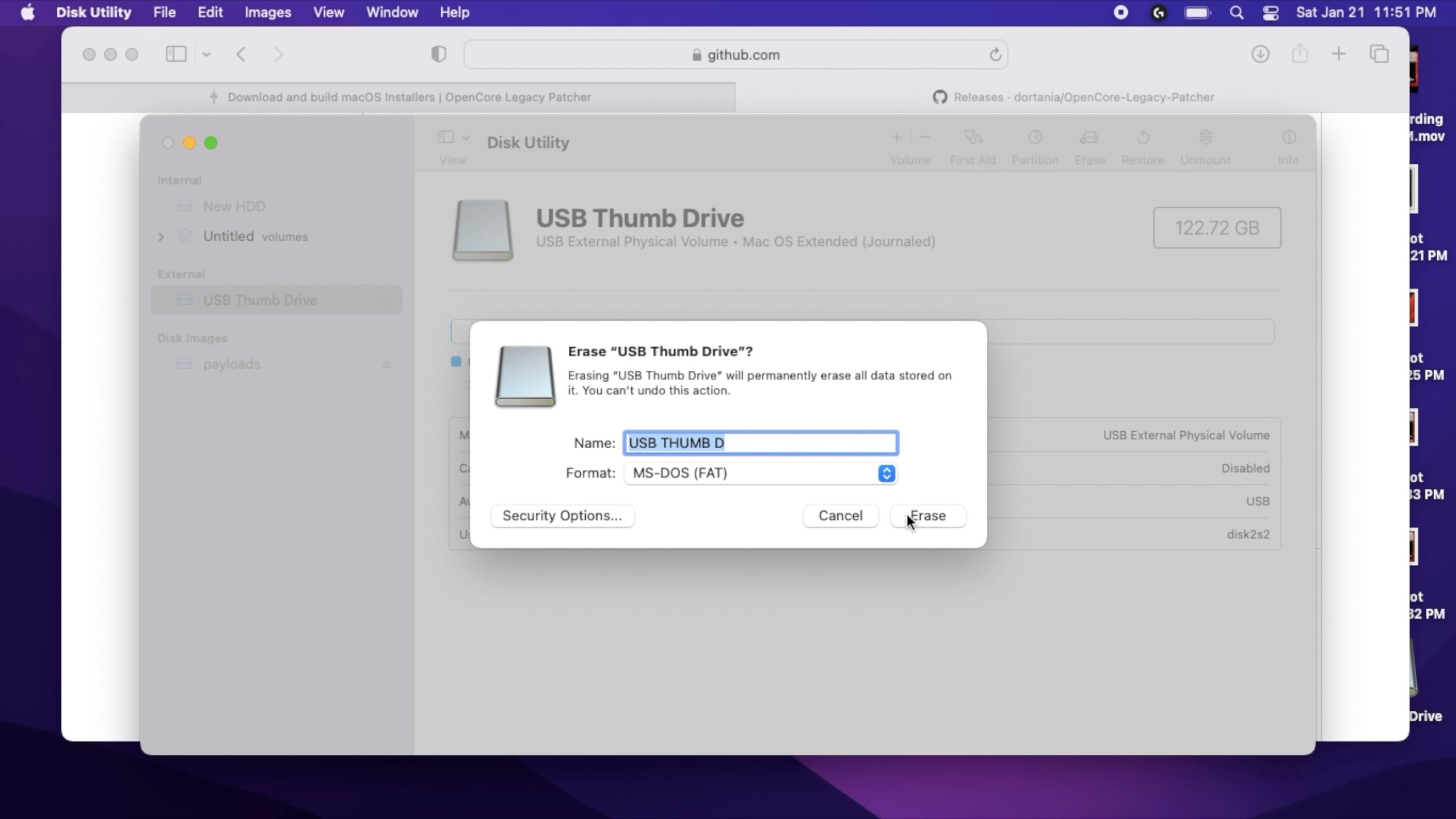
Plug your USB flash drive into your Mac (or a PC). Open up disk utility on your Mac. This is located in
Utilitiesfolder in yourApplicationsfolder, or easily found using spotlight. Highlight your USB thumb drive and select format. Format your flash drive to Fat 32. macOS lists this as MS-DOS (Fat). As a friendly reminder, Formatting will erase all the contents of your flash drive. If you have any important information, back it up before performing this step.This is required so the OCLP utility will be able to recognize the drive, and will format it again later.
Step 2) Download OCLP
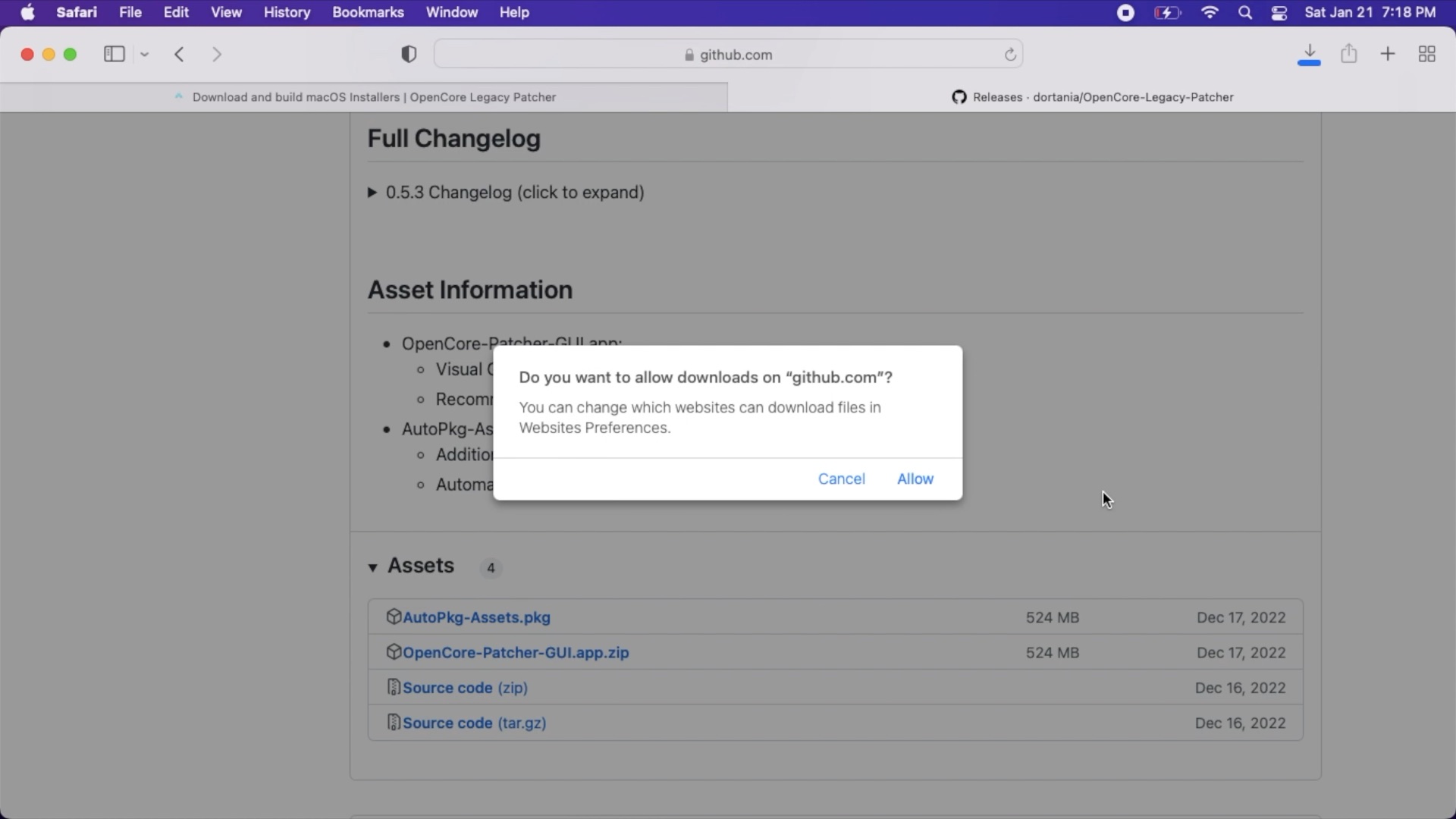
Confirm the support for your Mac, at OCLP's website, Download OpenCore Legacy Patcher from the OCLP GitHub page. As a general rule, you should download the latest version of OCLP. OCLP does receive semi-regular updates which may improve your Mac if you are already using OCLP you can upgrade it in the future.
Step 3) Launch OCLP
Depending on your OS/Browser settings you may need to decompress the zip file by double clicking it. Launch OCLP and select Create macOS installer.
Step 4) Download macOS
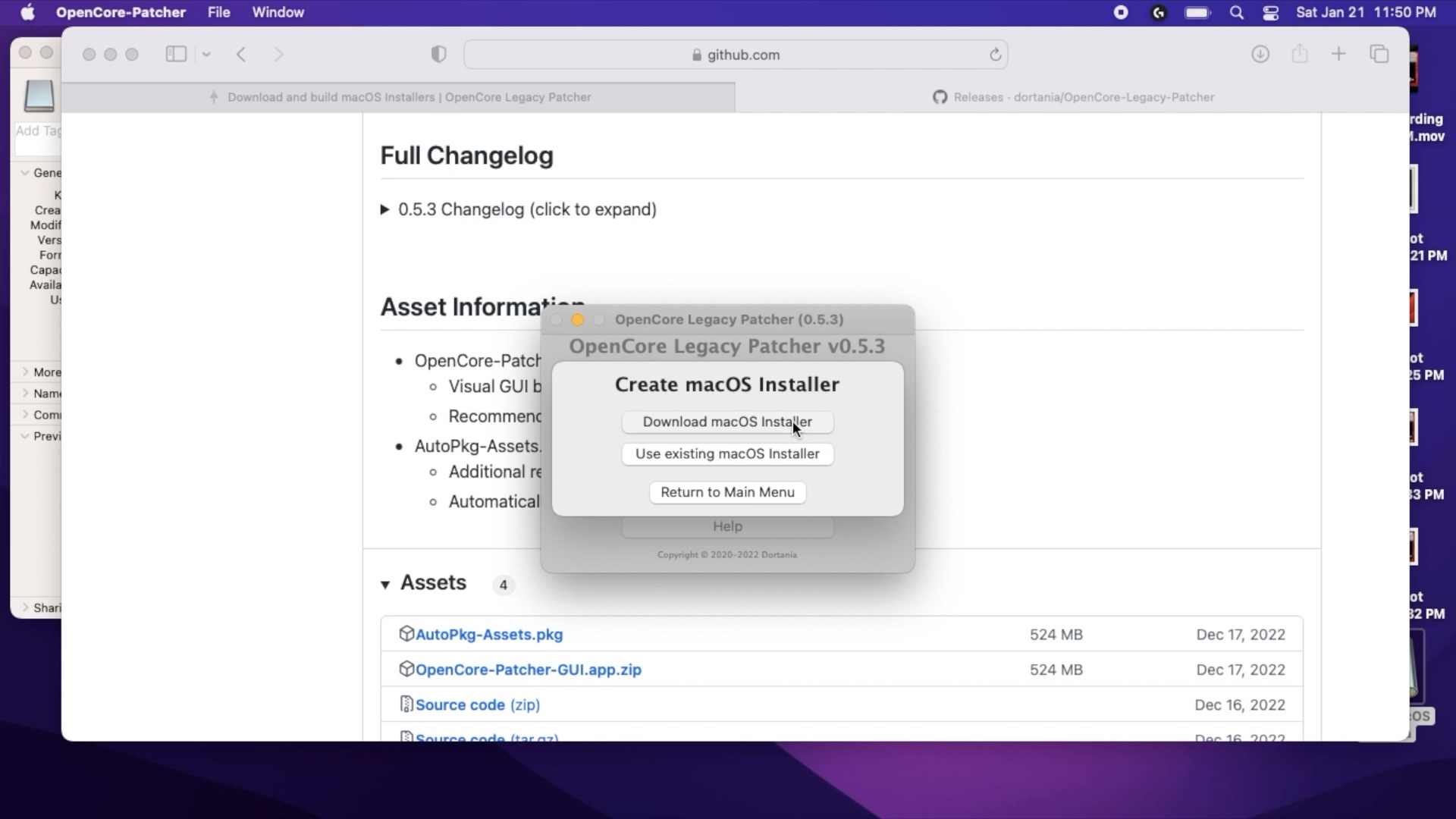
On the "Create macOS installer" screen, select Download macOS if you do not already have a version downloaded on your Mac, and then select the version of macOS you'd like to download. Downloading will take some time as the installer is 12 GB.
Step 5) Select your OS
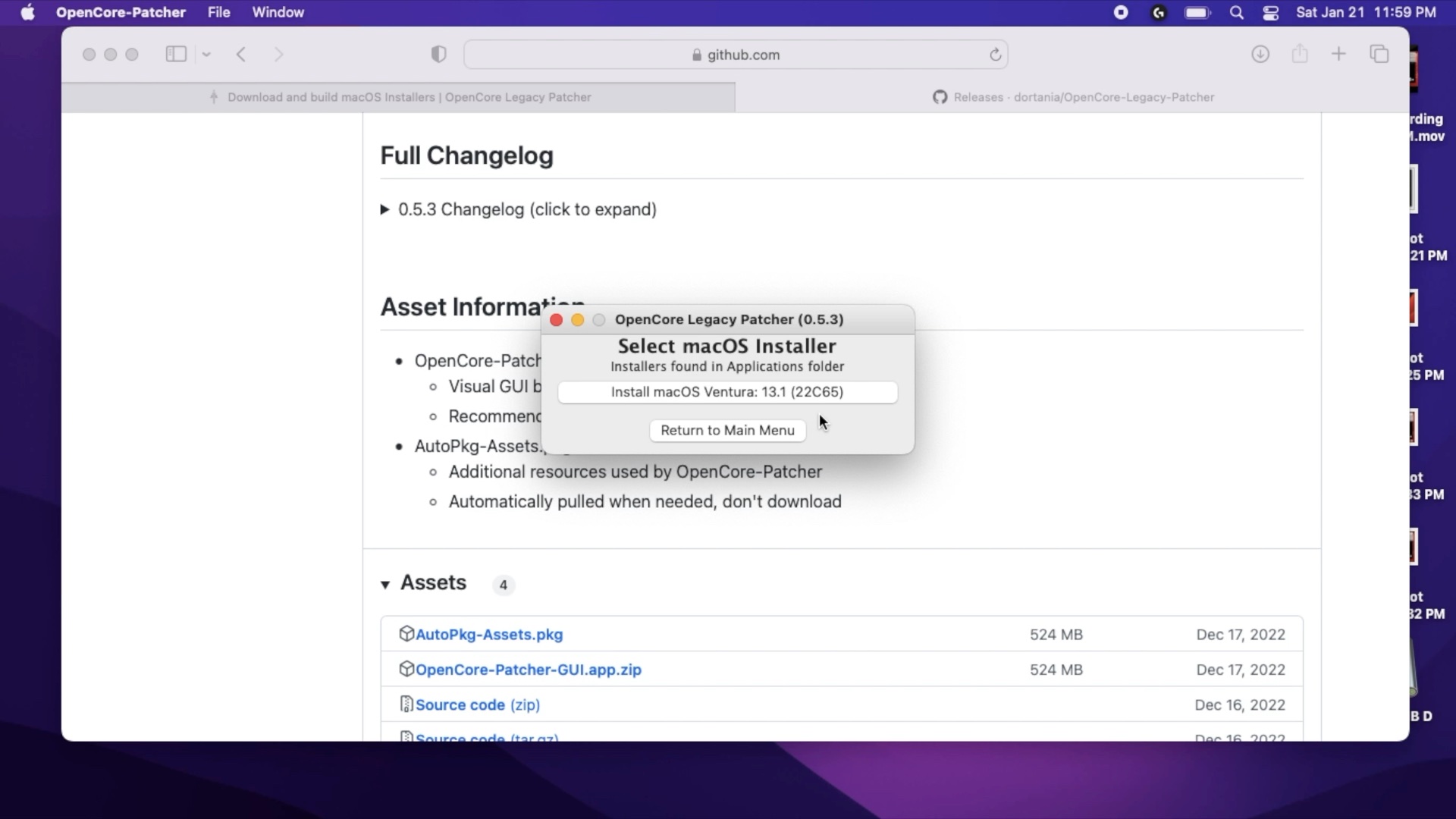
The installer should forward you to the select macOS screen and select your downloaded OS. If the OCLP utility does not automatically take you to this screen, return OpenCore's first screen and select create the installer, and select existing macOS.
Step 6) Install to USB drive
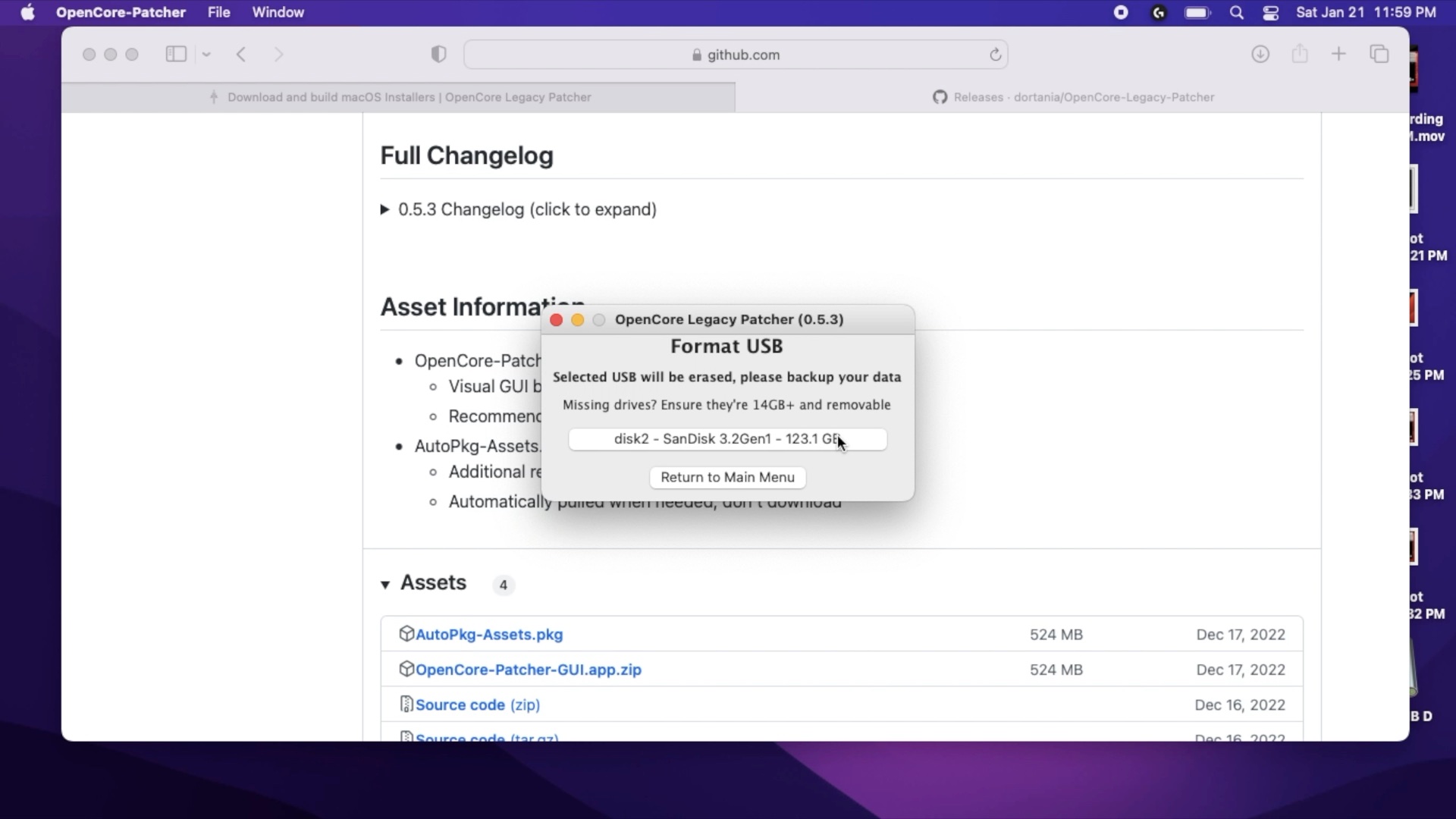
On the Format USB screen, select your USB drive. This will likely require your admin password. Enter it. This will take a significant amount of time, depending on your flash drive's speed and your Mac. This is a two-stage process as after it's copied over it will verify. You can leave this process in the background of your Mac while you perform other tasks or leave your computer unattended while this process completes. The installer will warn that it will take roughly a half hour although I found it took less time.
Step 7) Install OpenCore To Disk
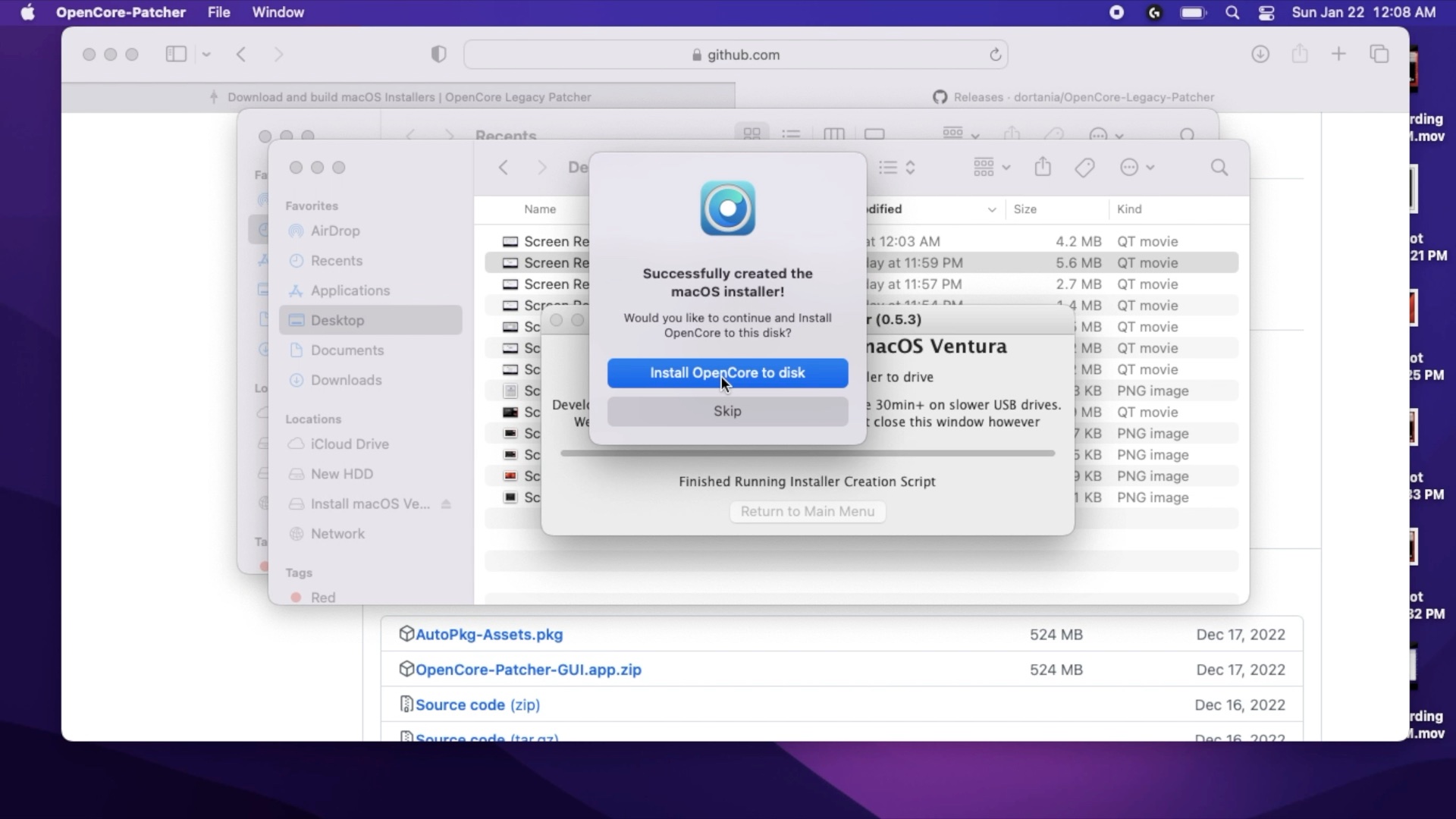
Once the installer has copied the installer to disk, it should ask you if you'd like to install OpenCore to disk. Select install OpenCore to disk. It'll build the OpenCore settings for your Mac. Select install to disk again, and select your USB drive.
Step 8) Reboot
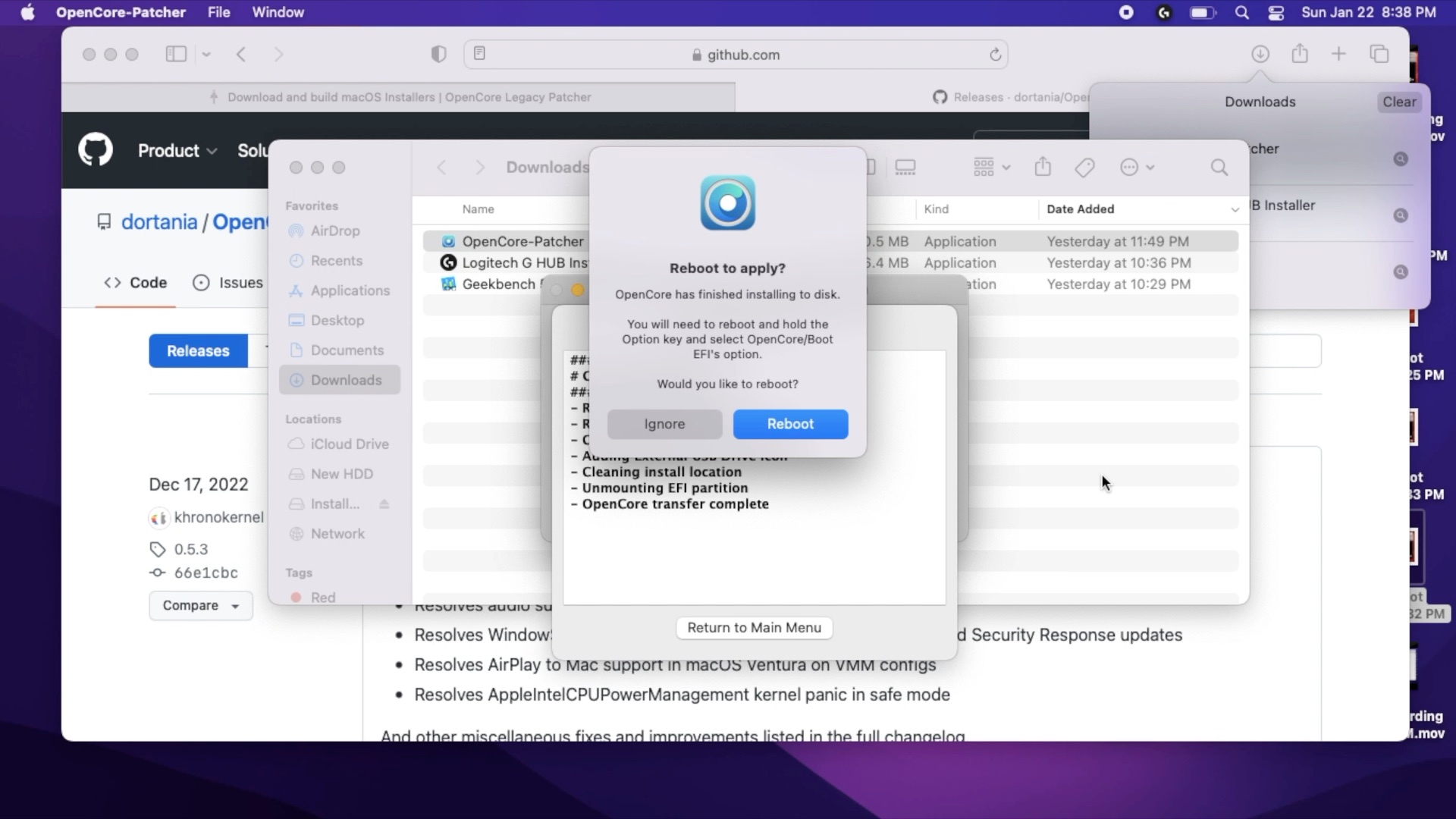
Once the installer has finished, it should ask you if you'd like to reboot. It should display the following: "You will need to reboot and hold the Option key and select OpenCore/Boot EFI's Option". Holding down the option key while your Mac is booting will cause it to boot into the boot picker.
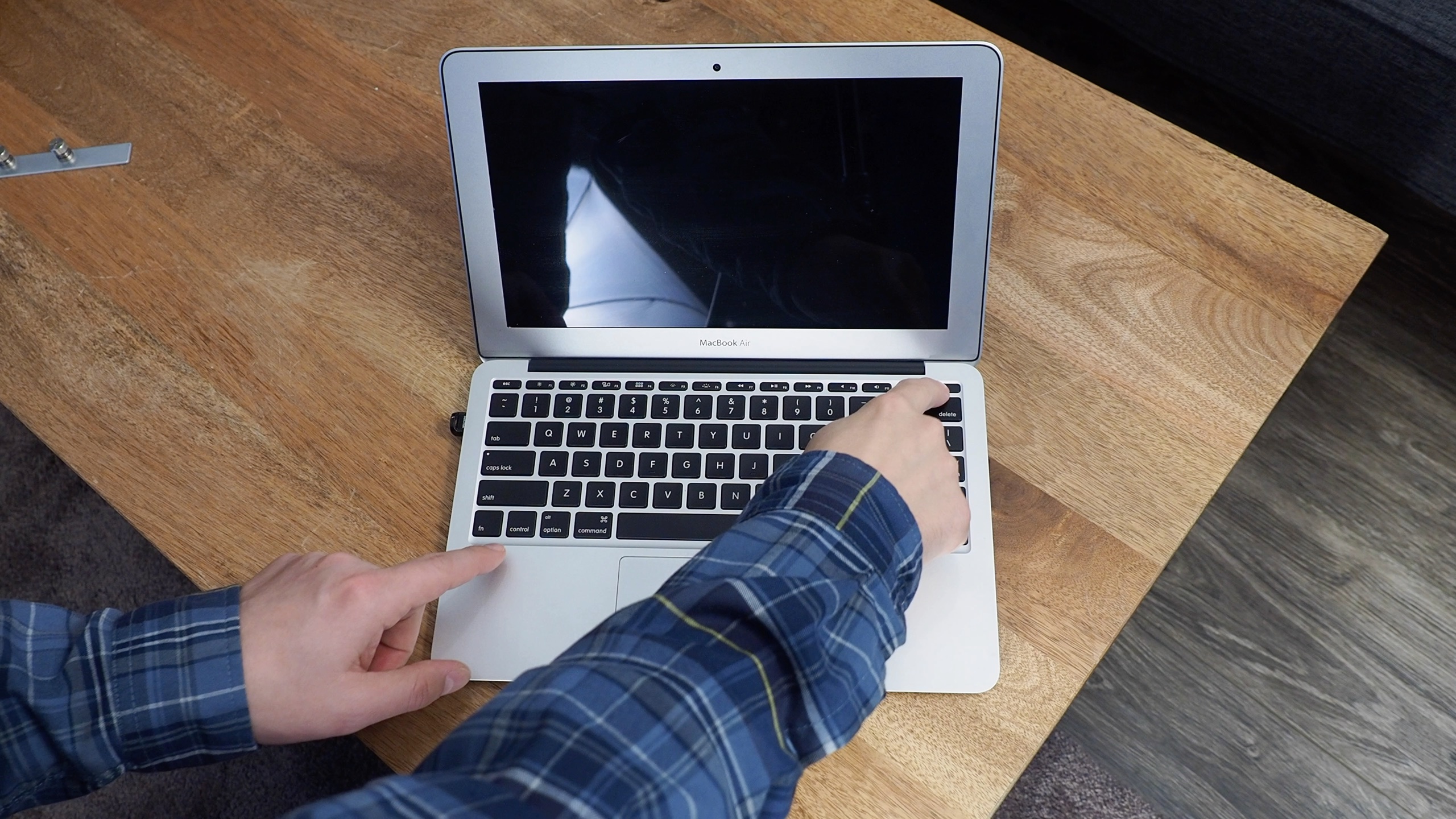
You can reboot now or later. When you reboot, you will need to hold down the option key on your computer and then select the OpenCore EFI partition. This will be the icon with the OpenCore logo behind it.
Step 9) Select OpenCore from the bootpicker and then the installer
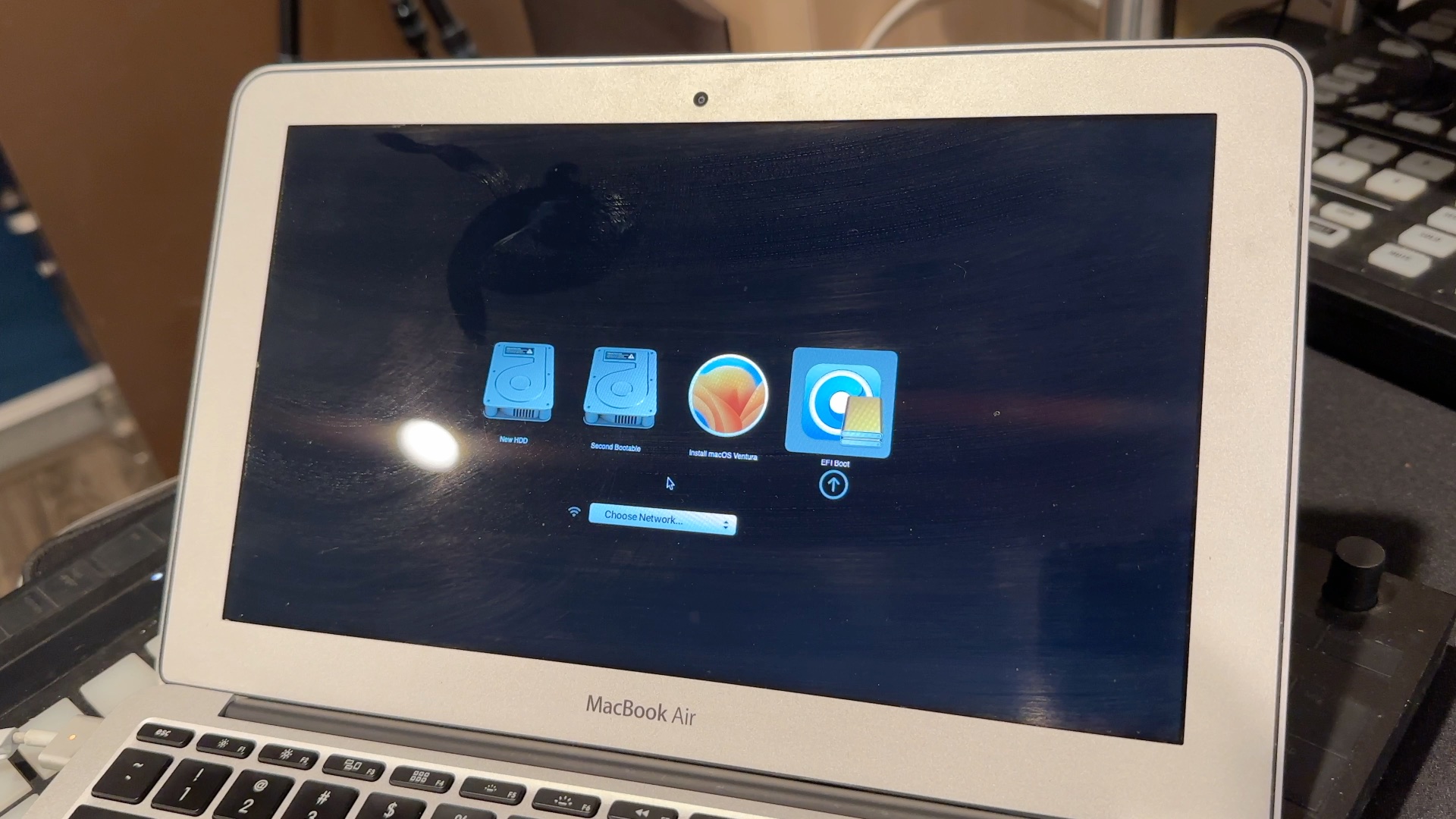
Once you've selected the OpenCore EFI you'll be taken to another boot picker. Select the installer. At this point, you have booted into OpenCore, and thus all the configured hacks are loaded in that will enable your Mac to be able to install macOS.
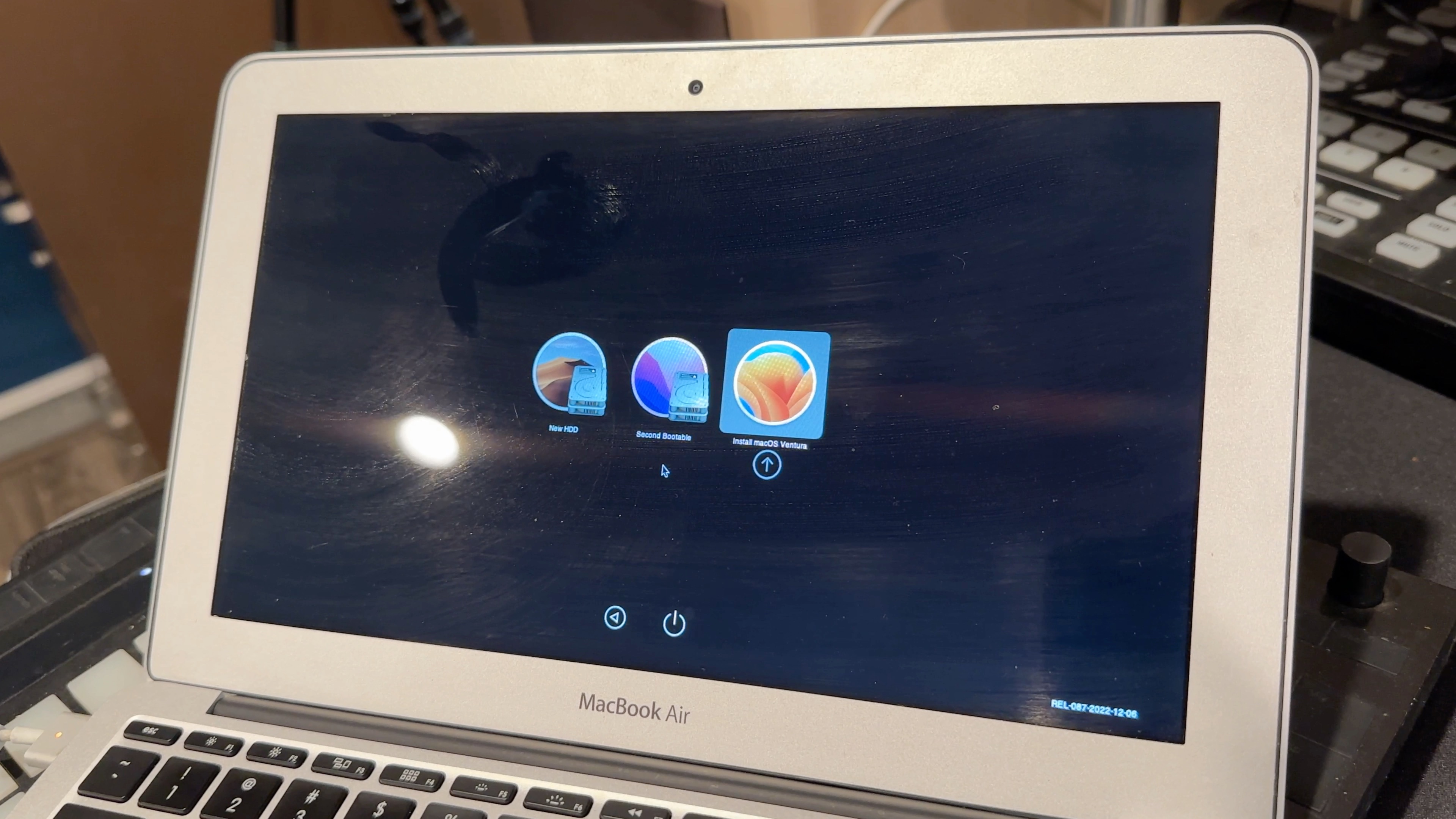
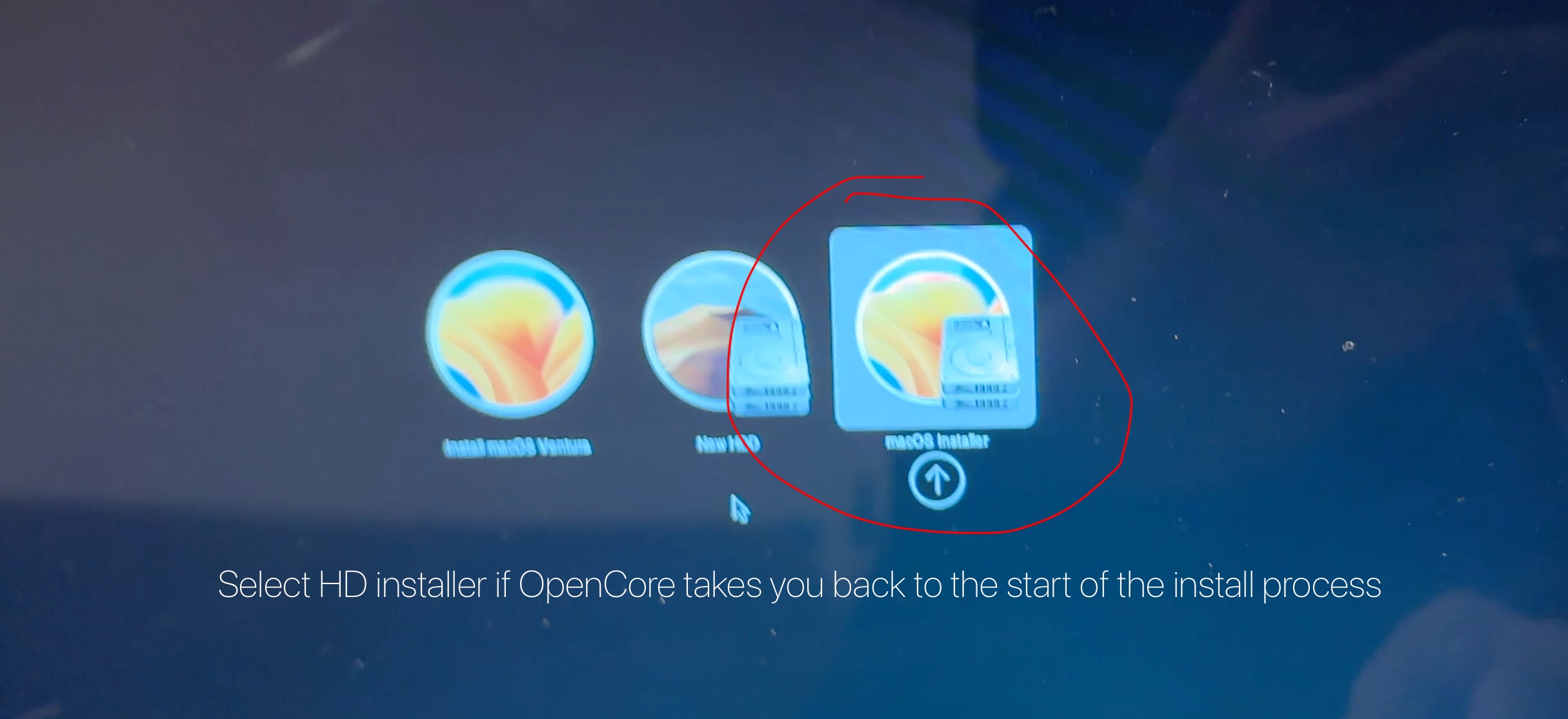
Step through the installer as normal. With modern macOS installs, the installer will need to reboot several times. It may reboot and bring you back to the beginning of the install process. If this happens, you'll need to restart your computer and from the OpenCore boot picker, select the incomplete install and not the USB installer. This will resume your install.
Step 10) Post Install
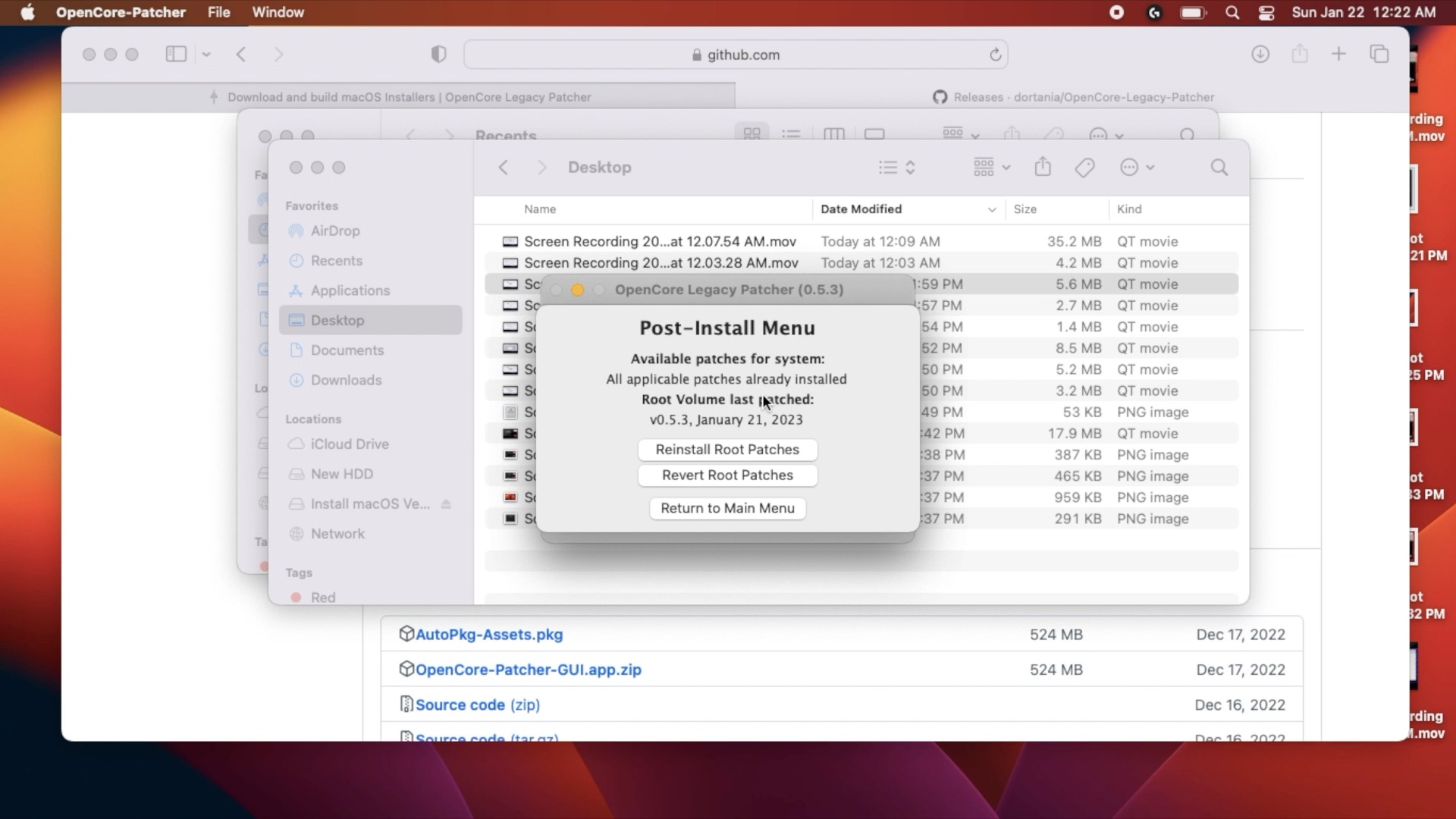
Finish setting up your Mac. Run OpenCore Legacy Patcher one last time and confirm that post-install modifications have been installed.
More OpenCore Content!
I installed OpenCore onto my Mac Pro 3,1 using OpenCore Legacy Patcher and made a video about my adventure.