-
JQuery Knobs

JQuery Knobs: A clever and pretty, and they work well on a touch screen…
-
12 Core Xeons, 30 Megs of L3 and the Mac Pro
Rather than turning its next Mac Pro into a big dual-socket affair, Apple is capitalizing on the fact that Ivy Bridge-EP will ship in 12-core configurations, and it’s consolidating the platform into a 9.9-inch-tall cylinder with up to one Xeon E5-2697 V2 CPU. Regardless of whether you love or hate the “wastebasket” design, the system’s specs are very impressive for the volume of space it occupies. - tomshardware.com
After analyzing the new Xeon’s, Tom’s Hardware’s immediate speculation is the new Mac Pros. I imagine that the new Mac Pro will be offered in several core configs, it also makes sense that Apple would go for a single socket design for space/heat.
I’m willing to bet we see multiple configurations divided mostly by 6, 8, 12 core CPUs.
-
The F-Bomb that hosed a site - Why your comments matter
Swearing is part of programming and trying to remove it is outright silly… that said, deviantart found out the hard way that an overzealous filters will break their site.
“I just wanted to let you know that the reason why deviantART’s CSS isn’t loading properly for some people is because one of your CSS files has f*** in a stylesheet comment.” - deviantart.com
Let that be a lesson, front end developers don’t get to swear, but the PHP/ASP/Python/SQL back end guys? Swear on….
-
TimeLine JS = beauty

Easily one of the coolest examples of javascript I’ve seen in some time. Its fluid, responsive and works better than you’d expect. Oh yeah, and its free and has even a video tutorial.
-
Draggable rotation with JQuery
Only if I’d found this two months ago, a nice handy github JQuery Rotate allowing for user rotatable objects, check out the demo on the GitHub Page.
-
Secure as a Chrome Lock….
Simply typing “chrome://settings/passwords” into the browser’s address box reveals a comprehensive list of the user’s login details, with any computer user able to click a ‘show’ button to reveal the hidden passwords.
This does not mean that the passwords are stored on the hard drive in plain text, but that they can be made visible in plain text to anyone with access to the user’s computer.
Any individual who can enter a user’s computer log-in (which could be as easy as finding the computer when left unattended) would then be able to copy somebody’s login details for all of their online accounts. - Independent.co.uk
I’ve always been unnerved that Chrome doesn’t store its Passwords in Apple’s Keychain or at least behind a Google account. I’m surprised this hasn’t been called out before.
-
Skeuocard- Detecting credit cards by number

Skeumorphism isn’t dead, and it makes sense in many cases.
Here’s a great example. This nifty project makes an interactive credit card, that auto-detects type based on the starting numbers. It makes for a very easy credit card capture process.
-
Practical Typography (an online book)
I’ve been reading the past day practical typography, while not perfect, it’s a pretty solid read and takes some initiative on opinions which I respect.
Excerpt:
If you’re limited to system fonts, consult this chart and choose wisely. For print, fonts on the A list are always best. For screen display, like presentations and websites, system fonts on the A, B, and C lists are fine. They’re also suitable for sharing draft documents. But always steer clear of the F list. Fonts plausible for body text are marked with ★. Others are usable for special purposes (for instance,letterhead).
This chart includes all the common Windows and Mac system fonts, plus the Microsoft Office fonts. System configurations differ, so not every font will be on your computer.
These rankings represent a blend of practical and aesthetic considerations, not absolute merit. Some fonts on the F list aren’t bad, they’re just inapt for professional writing. Similarly, some fonts on the A list are not my favorites, but they’re reasonably useful.
The A list: Generally tolerable
Avenir (Mac) ★
Baskerville (Mac) ★
Bell MT ★
Californian FB ★
Calisto MT ★
Century Schoolbook ★
Franklin Gothic ★
Garamond ★
Gill Sans ★
Gill Sans MT ★
Goudy Old Style ★
Hoefler Text ★
Optima ★The B list: OK in limited doses
Agency FB
Big Caslon
Bodoni MT
Book Antiqua ★
Calibri ★
Candara ★
Centaur
Century
Cochin
Constantia
Corbel
Didot
Eras Medium ITC
Futura ★
Geneva
Gloucester MT Extra Cond.
Helvetica ★
Helvetica Neue ★
High Tower Text ★
Modern No. 20
Palatino ★
Perpetua ★
Rockwell
Segoe UI ★
Tw Cen MT ★The C list: Questionable
Andale Mono
Baskerville Old Face
Berlin Sans FB
Bernard MT Condensed
Britannic Bold
Cambria ★
Castellar
Century Gothic
Consolas
Cooper Black
Copperplate
Copperplate Gothic
Courier
Courier New
Elephant
Engravers MT
Felix Titling
Footlight MT Light
Georgia
Goudy Stout
Haettenschweiler
Impact
Lucida (all styles)
Maiandra GD
Monaco
Niagara Solid & Engraved
Onyx
Plantagenet Cherokee
Poor Richard
Skia
Times New Roman ★
Wide LatinThe F list: Fatal to your credibility
Algerian
American Typewriter
Apple Chancery
Arial (all styles)
Bauhaus 93
Blackadder ITC
Bradley Hand ITC
Broadway
Brush Script MT
Bookman Old Style
Chalkboard
Chiller
Colonna MT
Comic Sans MS
Curlz MT
Edwardian Script ITC
Forte
Freestyle Script
French Script MT
Gabriola
Gigi
Harlow Solid Italic
Harrington
Herculanum
Imprint MT Shadow
Informal Roman
Jokerman
Juice ITC
Kristen ITC
Kunstler Script
Magneto
Marker Felt
Matura MT Script Capitals
Mistral
Monotype Corsiva
OCR A Extended
Old English Text MT
Palace Script MT
Papyrus
Parchment
Playbill
Pristina
Rage Italic
Ravie
Script MT Bold
Snap ITC
Stencil
Showcard Gothic
Tahoma
Tempus Sans ITC
Trebuchet MS
Verdana
Viner Hand ITC
Vivaldi
Vladimir Script
ZapfinoDon’t thank me, go to practicaltypography.com
-
Making the most out of Time Machine (Tutorial) (updated 2019)
Time Machine is easily one of the best features of OS X, and if you don't use it, you really really really should. Computers are replaceable; personal data is not. That said, this article isn't to convert the unconverted. Instead, this is for those already using Time Machine.
Time Machine doesn't support backing up to APFS formatted volume (yet) as this is due to change in 10.15 Catalina but Mojave improved the experience of missed backups.
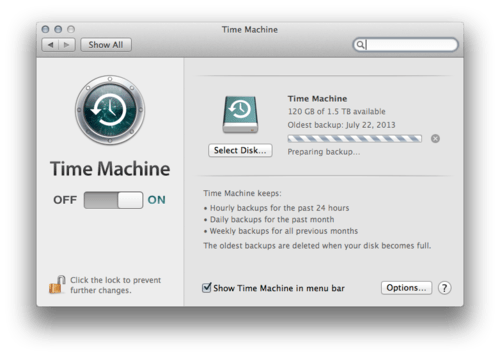
Remember, The more space Time Machine has free, the longer it can keep back up records It may seem crazy to have a year's worth of backups until you're chasing down a PDF you may have deleted anywhere from yesterday to last May.
Tip #1 - Disabling backups of space-wasting folders
Clicking options will reveal a simple interface that allows excluding folders from being backed up.
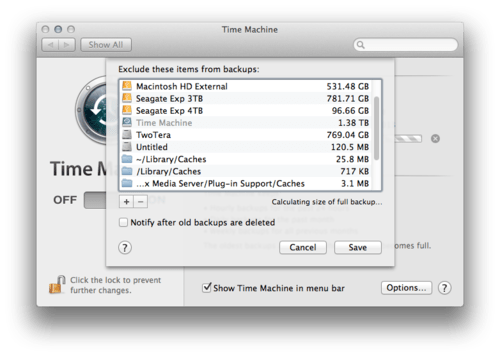
By default Time Machine backs up EVERYTHING when there are a few folders that should be disabled by default. To disable a folder, locate it and drag it onto the “Exclude these items from backups” window. If you're like me, you may have many drives to exclude.
Backing up your downloads folder is a data waste. For most people, the downloads folder the equivalent to the wild west, and you're apt to constantly decompress zips, nab massive DMGs and delete files from it. Even a deleted file will occupy space on Time Machine until all the snapshots that contain the deleted file are removed from Time Machine itself.
It's best to exclude it.
I've created a quick and dirty list of recommended files to block Time Machine. You'll need access to your ~/Library. Pro tip: When you see ~/ (the tilda represents your user folder, this is common shorthand for your user folder)
By default Lion and Mountain Lion hide the user Library folder, in all previous versions of OS X, this was accessible by the user. Punch in the following terminal command to unhide it. Its also not a bad idea to leave it unhidden as you may need access to it in the future when cleaning out OS X.
chflags nohidden ~/Library/Recommended folders to disable (for all users)
- ~/Library/Caches - (Cache files are prone to change)
- /Library/Caches
- ~/Library/Downloads
- ~/Music/iTunes/Mobile Applications - (These can be redownloaded from iTunes or your iPad/iPhone/iPod and are constantly updated)
- ~/Library/Application Support/Steam/SteamApp - (This will not back up games using the Steam Service. Games are subject to frequent updates, and any games can be redownloaded from the steam service. Many games use Steam cloud to back up game saves).
- ~/Documents/Parallels - VMs in the past have been notoriously bad for Time Machine, VMware includes Time Machine functionality. So does Parallels. Follow their instructions if you'd like Time Machine to back up them.
- ~/Applications (Parallels)~
- ~/Dropbox - Dropbox is already in the cloud, no reason to back it up
- ~/Public (Optional: Depends on your network usage habits)
- /Incompatible Software (This will be in the root of your computer after an OS upgrade).
Tip #2 - Deleting useless backups
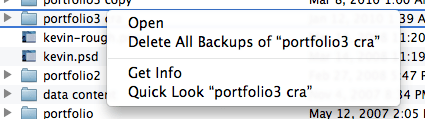
If you find that you've been backing up for eternity your iTunes Movie collection or some media dump folder, you may want to delete the record.
Locate the folder in question in your finder, then click the time machine icon your dock. This will take you to the folder in Time Machine. In the time machine folder, right-click the folder and select Delete All backups. This may take some time depending on the size and frequency of the backups
Tip: This the nuclear option on Time Machine, when you Delete All Backups, you are erasing any previous record of the file. However, if you do not ignore the folder, the folder will still be backed up in its current state.
Tip #3 - Utilities
As you've probably noticed, Time Machine doesn't provide much in the way of options. Fortunately, there's a fair amount of good Time Machine utilities.
Here's a few I've highlighted. Please note, there are plenty of Time Machine related utilities besides these… MacUpdate.com is a fantastic place to find Mac utilities of all types.
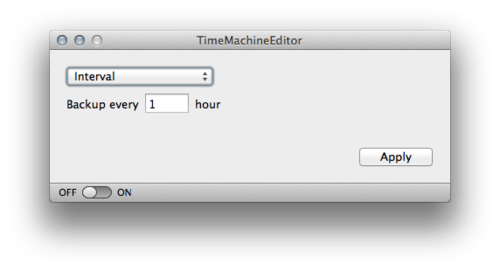
Time Machine Editor - change the backup interval updates (instead of one hour) (free)
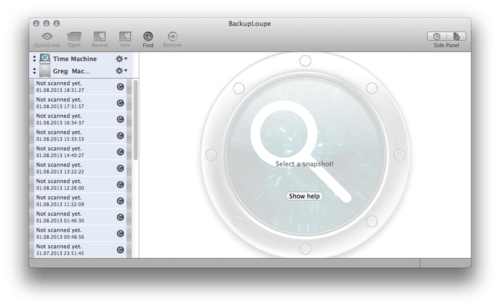
BackupLoupe - Allows you to see individual file records, including revisions, when a file was deleted from records and so forth. Only $5 and handy. A must for Time Machine junkies.
Tedium - Allows multi-time machine backups and management for old OSes (10.8+ has multiple drive support)
Back In Time - expensive but allows you to see more clearly how many iterations of a file was backed up, show deleted items and so on.
Tip #4 - Multiple HDs
10.8 added support for multiple Time Machines. Multiple HDs do not work in a manner that you may expect, backups alternate on the hour between drives. The data is neither split between drives nor do the drives backup only portions/locations (Time Machine #1 backs up the boot drive, Time Machine #2 backs up the secondary drive). You'll have two independent Time Machines, not double the space. Time Machine favors large drives.
For the average user needs, it's a little overkill. When selecting a backup drive, go big as your wallet can afford. While you can back up a larger drive with a smaller drive (assuming you're not using all your free space) a good rule is always bigger. As of writing this, a Seagate Backup Plus 4 TB USB 3.0 runs about $130 on Amazon. A drive doesn't need to be dedicated just to backups. You can partition (split) your Hard Drive into two separate volumes, a Time Machine, and Additional Storage.
Tip #5 - Using a networked drive (that isn't a time capsule)
Many routers come with USB ports that allow connection of external HDs. However, Time Machine is semi-restricted. You cannot back up to anything outside of an HFS+ disk, and it doesn't play nicely with non-Time Capsules. However, with a bit of terminal fun, you can use your own NAS storage device. You will want to start with stephenmorley's guide here based on levelofindirection.com. Read the first and check out the second.
You'll need first to enable non-(officially)supported drives and then follow up with creating the sparse bundle manually. After that it's smooth sailing.
Tip #6 - Show Time Capsule on Desktop/Finder Windows
By default, owners of the Time Capsules may notice they no longer see the Time Capsule when it's mounted. Go to your Finder Preferences and check your “Show Connected Servers” and “Show Connected Drives” and you'll see the Time Machine as before.
Tip #7 - Encrypt your backups
- Open Time Machine preferences.
- Click Select Disk or Add or Remove Backup Disk (if you have multiple backup disks).
- Select your backup disk, then click Remove Disk.
- Now set up the disk again as an encrypted backup disk. For instructions, see:
Choose a backup disk and set encryption options
Tip #8 Time Machine fails restoring from backup
If a restore fails, fear not. Restores are faster but you will not lose your important files. Check outthe full album here.
Happy backups!
This article was updated on August, 23, 2019 with fixed links, when time machine fails updating and copy edits.
-
Android 4.3 - Multi-User Restricted Profiles
The biggest addition to Android 4.3 is the Multi-User Restricted Profiles feature, which lets you control the usage of apps and other content on a user level. Multiple user profiles were already available in 4.2.2, but the ability to create restrictions has long been requested, so it’s sure to be a big hit.
The people most obviously to benefit from the new profile controls are parents. We saw this in Google’s demo; being logged into a restricted user profile caused an app to behave differently. Specifically, a freemium game showed up without all of the in-app purchasing functionality, which is clearly going to be useful for parents with young children who use the device.

The ability to create restricted user profiles can be useful for businesses and families that share devices.
(Credit: Screenshot by Jaymar Cabebe/CNET)As well, retail kiosks that use tablets for customer service or as POS systems will be able to make use of the feature. By enabling multiple user profiles, businesses will be able to take advantage of the versatility of tablets by using them in different contexts.
- CNET, Google Android 4.3 is here, and it tastes like Jelly Bean
Tablets are really a social device, meant to be handed between users. Its surprised me its taken this long for multi-user OSes to catch on for tablets. Depending on execution, this could be a killer feature for families sharing tablets. It looks pretty cleanly executed, and yet another feature my iPad lacks…. for now.